Version: 0.56.0This documentation is for Spitfire 0.56.0.
Schedules, synthetic monitoring and notifications
This page covers three related features:
- Scheduled runs — running a test regularly on a cron schedule (e.g. every night at 02:00).
- Synthetic monitoring — running a test at a low load, at short intervals, against a live system, to keep asking "does it work?".
- Notification channels — taking the results of runs, schedules and monitors to people and systems via Slack, Microsoft Teams, e-mail, SMS or webhook.
Suggested order: set up a notification channel first, then create the schedule or monitor. That way you hear about the first problem.
What it does
- A schedule load-tests regularly without a pipeline: "run the load test every night and tell me in the morning if something got worse."
- Synthetic monitoring notices a breakage before your users do: "do sign-in, add to cart and the checkout page work right now?" Each check is short and light; no full run record is made.
- Notifications take the result to where the team already looks, and can work "on problems only" to avoid alert fatigue.
When to use it
| Need | Use |
|---|---|
| A full load test every night or week | Scheduled run |
| A test on every deploy or PR | CI/CD |
| A minute-by-minute health check of the live system | Synthetic monitoring |
| Comparing two versions every night | Scheduled run + Start a comparative run |
| Results in Slack/Teams/e-mail/SMS | Notification channel |
| Results as JSON in your own system | Webhook (JSON) channel |
Creating a scheduled run
A scheduled run runs the test on behalf of the user who created it and with that user's current permissions. If the user loses access or is disabled, the schedule does not run.
Step by step:
- Open the test from the Tests page.
- Press Schedule at the top. The New schedule dialog opens.
- Give it a Name (e.g. "Nightly load test"). An empty run note uses this name.
- Under When pick a preset:
- Every hour
- Every night 02:00
- Weekdays 09:00
- Mondays 03:00
- Custom (cron) — write a 5-field cron expression: minute hour day month weekday.
Example:
30 1 * * 1-5= weekdays at 01:30.@daily,@hourly,@weeklywork too.
- Pick the Time zone (e.g.
Europe/Istanbul). The cron expression is read in this zone. - Enter the number of Runners.
- Optionally, in Environment and scale, choose one of the test's environments (Environment), a Load scale, and variables to change for these runs. The test does not change; the differences apply only to the scheduled runs.
- The Next runs list in the dialog shows when your expression will really fire. Always check it before saving.
- Optionally fill in Run note (default: the schedule's name).
- If the test changes data, tick If this test changes data, I allow that for the scheduled runs too. Without it, a test that changes data does not start from the schedule.
- Make sure Enabled is ticked and press Save.
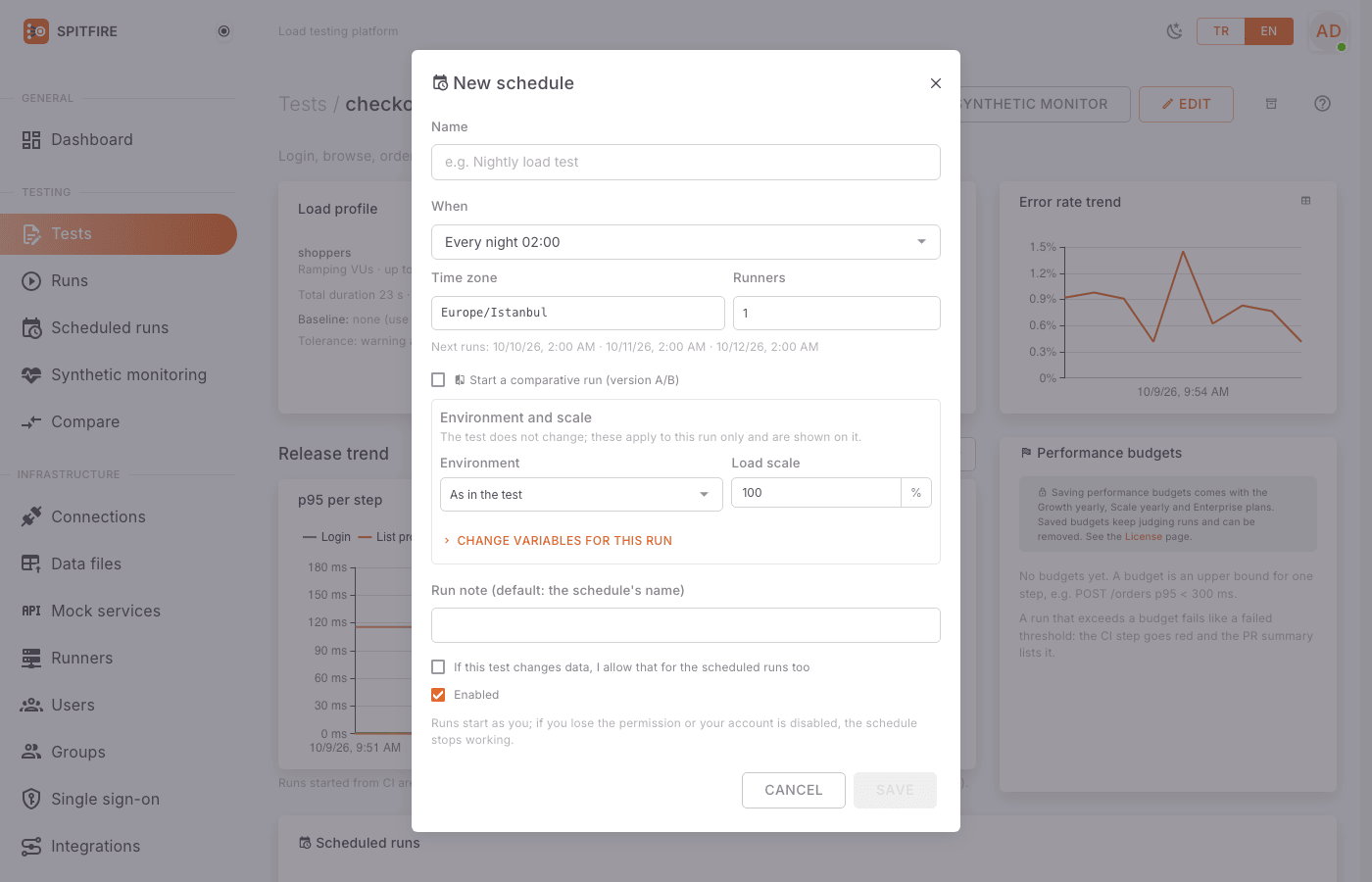 New schedule dialog
Schedule rules
- A schedule may run at most every 5 minutes. A more frequent expression is refused with "A schedule may run at most every 5 minutes."
- A firing while the schedule's previous run is still going is skipped (skipped).
- So is a firing in the peak-hours window (see Peak hours).
- Times missed while the controller was down are not made up: a run more than 10 minutes late is marked missed.
- A run that cannot start (no idle runner, license limit, writes not confirmed) is marked
did not start and is reported to channels subscribed to
schedule.failed.
Peak hours
An installation admin can set a window in which scheduled runs do not start, from the
Peak hours card at the top of the Scheduled runs page: days, from and to, and a time zone
(e.g. weekdays 09:00–18:00, Europe/Istanbul). Heavy tests then never strain the target while
your customers are busiest.
- A firing that falls in the window is skipped for that turn (skipped, the note says "inside the peak hours"); the schedule moves on to its next time and the skipped run is not caught up.
- It is on purpose, so no
schedule.failednotice goes out. - Run now, runs from CI or started by hand, and synthetic monitors are not held back.
- When To is before From, the window crosses midnight (e.g. Friday 22:00–02:00); the part after midnight belongs to the day it started on.
- The Next runs preview in the schedule dialog marks the times that fall in the window as "in peak hours, skipped". The card also shows whether the window is open now.
- API:
GET /api/v1/settings/peak-hours(everyone may read it),PUT(installation admin;enabled,days0 Sunday … 6 Saturday,from,toasHH:MM,timezone).
Managing scheduled runs
Testing → Scheduled runs in the left menu lists every schedule: test, when, the Next firing, the Last status (started, skipped, missed, did not start) and the Owner.
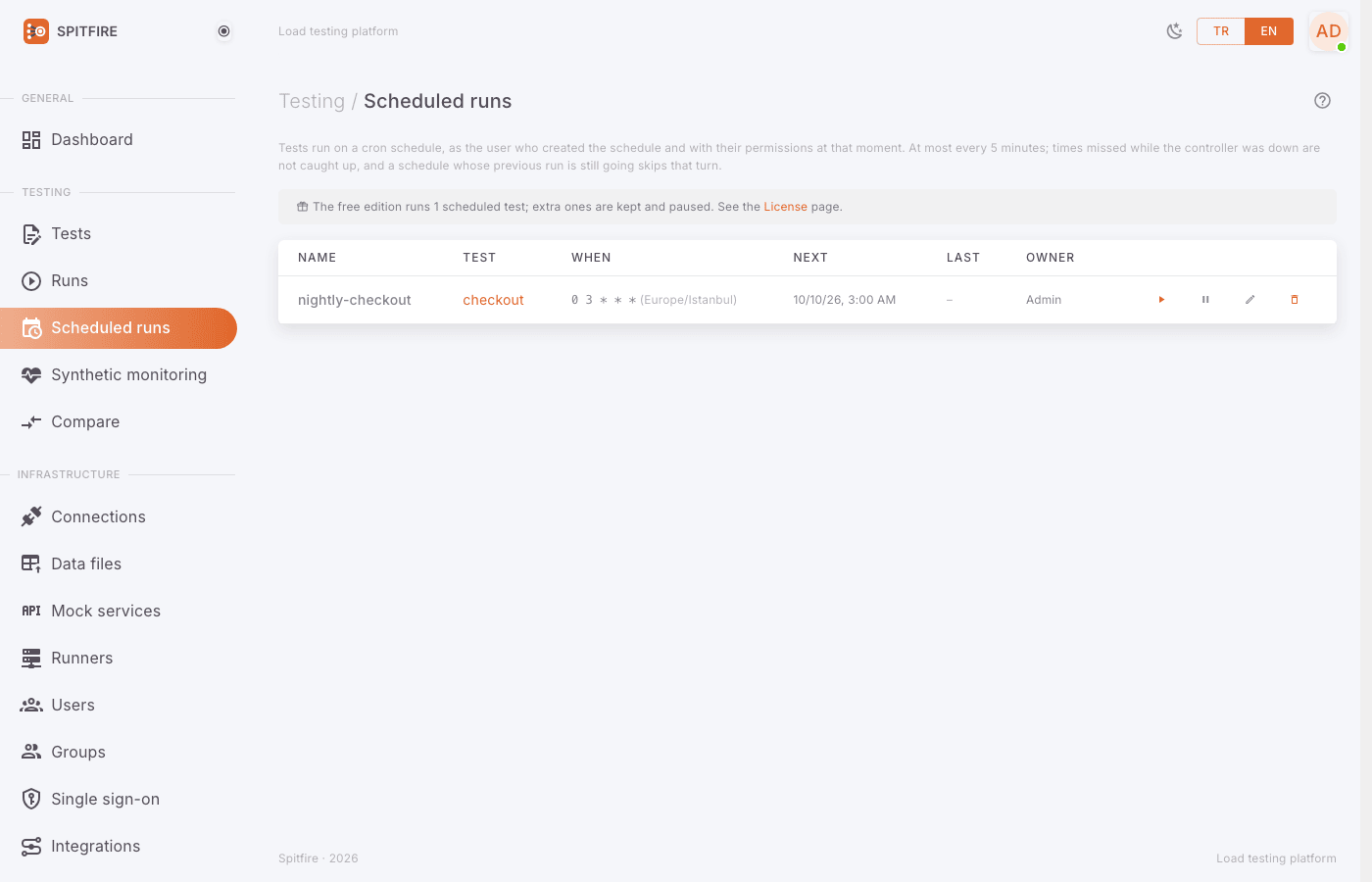 Scheduled runs page
On each row:
- Run now — fires it once without waiting (ideal for trying it out).
- Pause / Resume — stops and restarts the schedule without deleting it.
- Edit — opens the same dialog.
- Delete — deletes the schedule; the runs it started stay.
- run → — goes to the latest run it started.
Scheduled comparative runs
A schedule can start a comparative run (version A/B) instead of a plain run: "every night, dev against test".
- In the schedule dialog tick Start a comparative run (version A/B).
- Choose the environment for Arm A (reference) and Arm B (candidate).
- Optionally write a Version label per arm. An empty label takes what the environment's version endpoint reports.
- If you have a single environment, or the environments share resources, turn on Sequential comparison (the arms take turns). A scheduled sequential comparison on one environment needs the environment's version endpoint, because nobody is there to confirm the switch.
- Save.
Each firing runs the test against both environments at the same time, each arm with half the
load. A "worse" or "invalid" result goes to the notification channels as run.compared; on the
list, comparison → links to the latest one. Details: Version comparison.
A scheduled comparison needs the compare_ci license feature (Growth yearly, Scale
yearly, Enterprise). The free edition allows 1 scheduled test.
Creating a synthetic monitor
A synthetic monitor runs the test at a low load, on an interval, against a live system. At every check each VU runs every scenario once (at most 60 s). No run record is made; only a summary is kept: passed / slow / failed, the duration of the whole check and of each step, one error sample and the location.
Step by step:
- Open, from the Tests page, the test of the flow you want to watch (e.g. sign-in + add to cart + checkout page).
- Press Run as synthetic monitor at the top. The New synthetic monitor dialog opens.
- Give it a Name.
- Pick the Interval: 1, 5, 15 or 60 minutes. The free edition allows at most every 15 minutes; shorter options show a paid plans label.
- VUs: 1–10 (default 1). A synthetic monitor is not a load test; keep it small.
- Locations: pick one or more. Each chosen location runs its own check (on an idle runner there). Without one, any idle runner is used.
- Environment: which environment the test runs with. The test's own values uses the values in the test.
- Fill in Alerts:
- Bad checks in a row: after how many bad checks the alert goes out (e.g. 2 or 3, so a single network blip does not page anyone).
- Check duration threshold (ms): a whole check longer than this counts as slow.
- Step duration threshold (ms): any step longer than this makes the check slow.
- Leave them at none if you do not want a threshold.
- If the test changes data, the This test changes data warning appears (see below).
- Keep Enabled ticked and press Save.
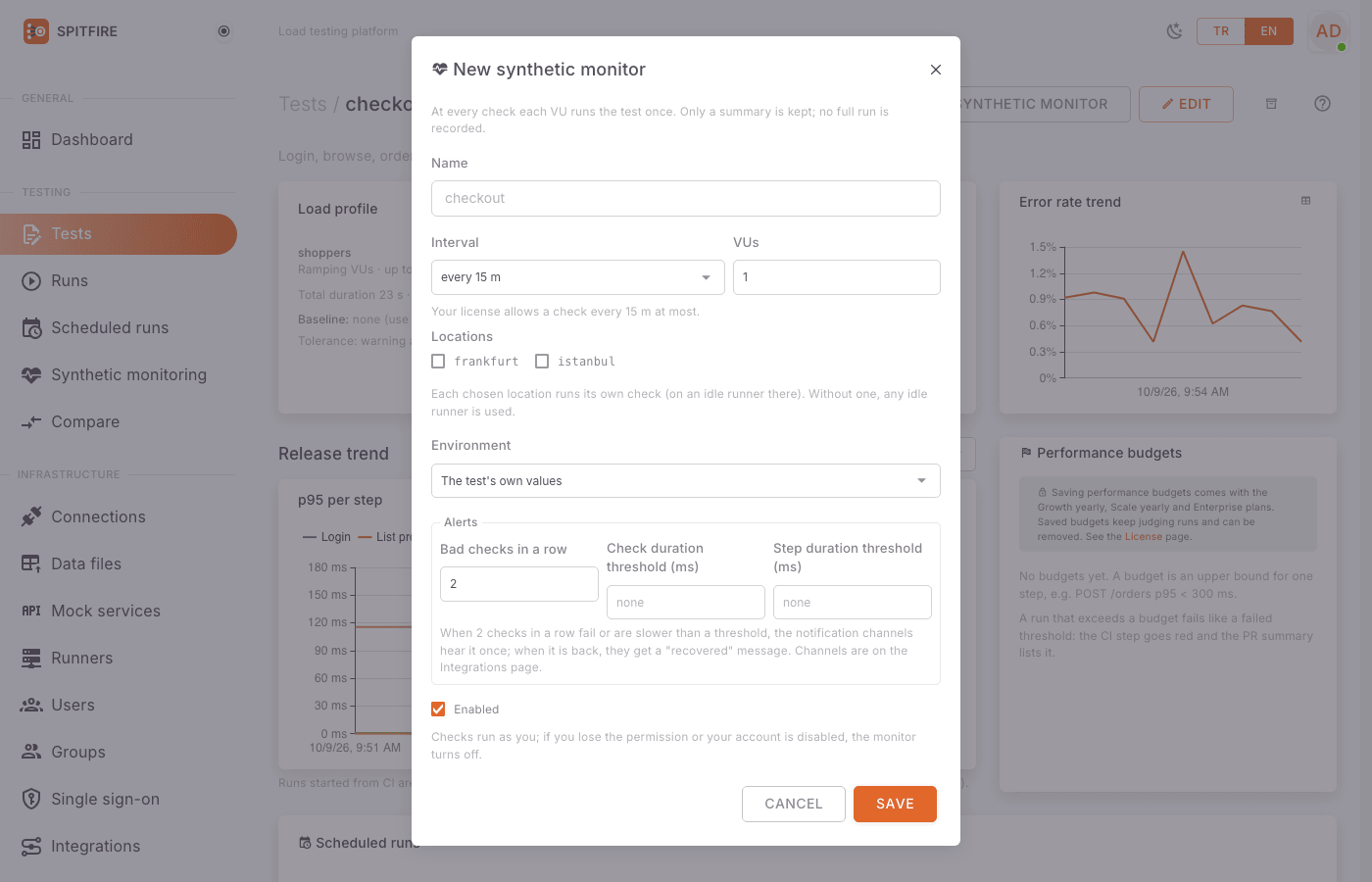 New synthetic monitor dialog
After saving, press Check now on the list. Once "Check started; its result shows here within a minute." appears you will see the first result, and you know the settings are right without waiting for the interval.
Write protection
A test with a step that changes data (SQL/Mongo writes, a dangerous Redis command, an HTTP request marked as modifying data) needs explicit confirmation in a monitor, whatever the environment. A synthetic monitor repeats those steps against the live system at every check: 1440 times a day at a 1-minute interval.
- The dialog shows the This test changes data heading and its explanation.
- Without ticking I allow these steps to change data at every check the monitor is not created.
- If the test starts writing later (a write step is added), the monitor is turned off.
If you can, write a read-only test for monitoring. Writing a fake order into the live system every minute is rarely what you want.
How checks work
- Checks run on behalf of the user who created the monitor, with that user's current permissions; a user who loses access has their monitor turned off.
- A check never overlaps the monitor's previous check.
- With no idle runner the check counts as skipped and does not enter the uptime. If all your runners are busy in long load tests, monitor checks are skipped; consider a separate runner or location for monitoring.
- Checks run through the normal orchestration (runner choice, license check, connections). On the Runners page a runner doing a check shows as a synthetic monitor check.
- Checks are kept for 30 days (7 days on the free edition) and pruned by the daily maintenance.
Reading a monitor dashboard
Testing → Synthetic monitoring in the left menu lists every monitor: State, Interval, Locations, Last check, Owner.
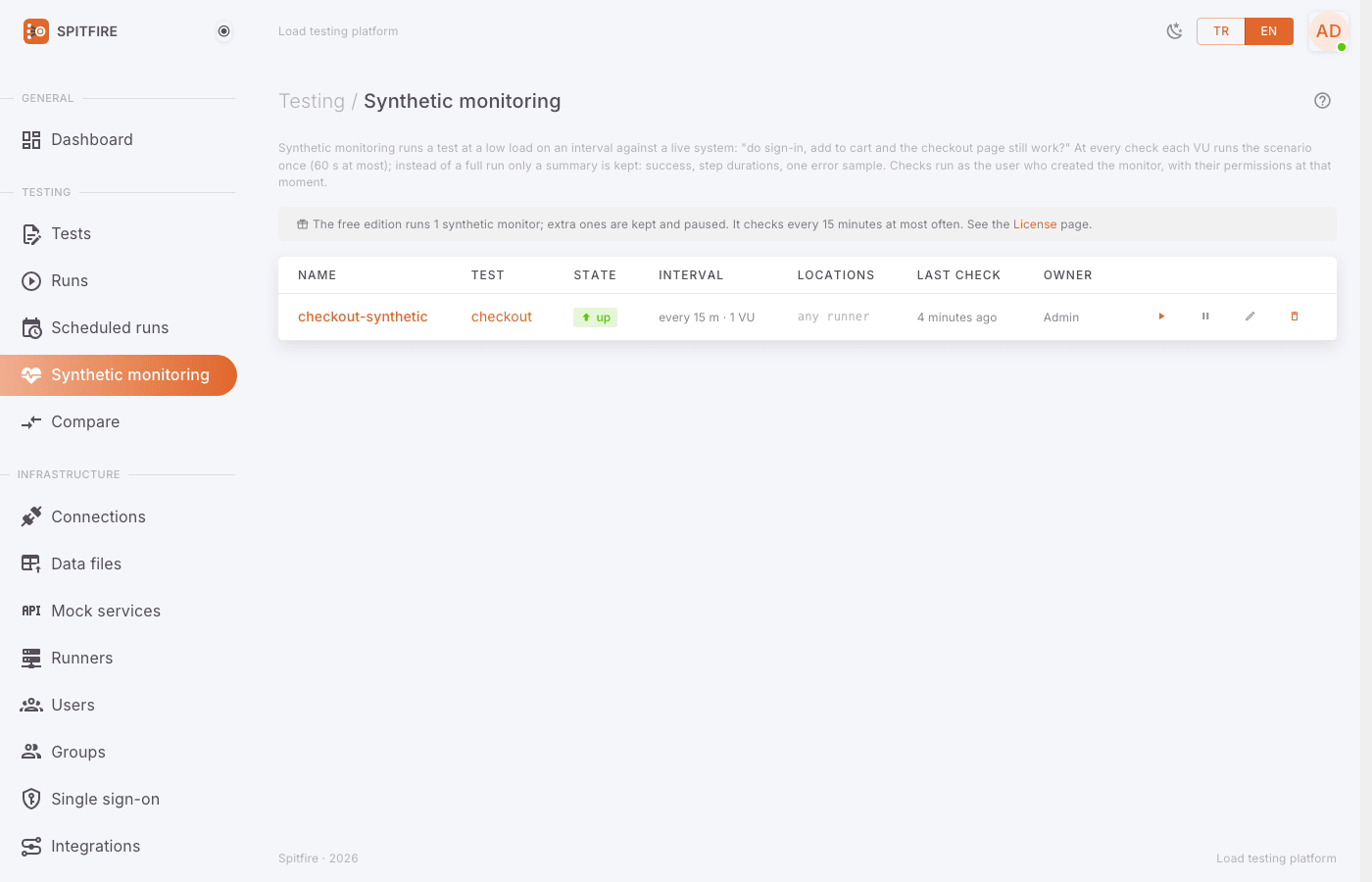 Synthetic monitoring list
States:
| State | Meaning |
|---|---|
| up | The latest checks passed |
| slow | A check or step duration threshold was exceeded |
| down | Checks fail (the bad-checks-in-a-row threshold was reached) |
| unknown | No check yet, or all were skipped |
| paused | The monitor is paused |
Click a monitor's name to open its dashboard:
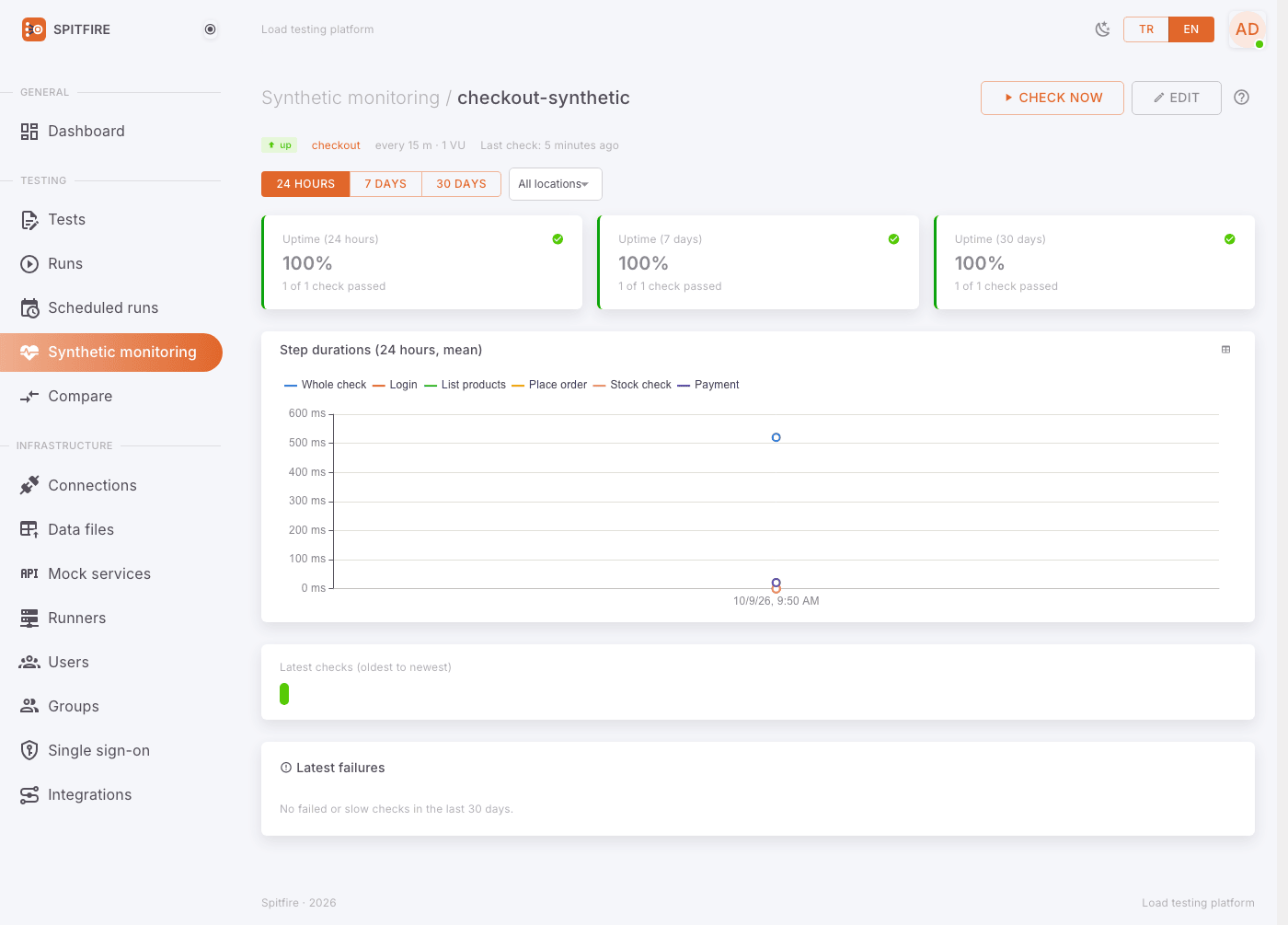 Monitor dashboard
- At the top pick the Time range (24 hours, 7 days, 30 days) and the Location (All locations or one).
- The Uptime boxes show the 24-hour, 7-day and 30-day ratio and "x of y checks passed".
- The Step durations chart shows each step's mean duration over time; the Whole check line is the total. This is where you see a step slowly getting slower.
- Latest checks (oldest to newest) lists each check with its result (passed, slow, failed, skipped), duration and runner.
- Latest failures shows failed and slow checks with an Error sample: which step, how many requests failed, which checks failed.
- While a problem lasts, the top says "Incident open since …".
The "Always-on watch" card on the dashboard
On the main Dashboard, right under the top summary tiles, the Always-on watch card shows a live roll-up of all your monitors, so you see at a glance that Spitfire keeps running in the background. The card (an admin sees the whole workspace, a user their own monitors) shows:
- A summary line: "Every monitored flow is up" when all is well, or how many incidents are open and since when the oldest one started.
- Watching: how many monitors are actually checking right now (enabled and within the license).
- 24 h uptime: the uptime ratio over the last 24 hours of checks (skipped checks do not count); ≥99.9% is green, ≥95% amber.
- Open incidents: how many monitors are currently down.
- Last check: how long ago the most recent check ran.
- When the license has paused a monitor, a note reads "N monitors paused by the license".
With no monitors yet, the card invites you to turn a test into a synthetic monitor. It refreshes itself every 5 seconds.
Living baseline: drift without thresholds
Because a monitor checks around the clock, Spitfire learns each monitor's own normal and spots a change by itself — nobody has to guess a threshold. On a monitor's page, the Living baseline card compares the last 24 hours with the 7 days before:
- p95 and p50 duration of the checks that worked, each with its baseline and the change (e.g. "baseline 210 ms · +24%").
- Error rate: the share of failed checks, now and in the baseline.
- A status: Normal, Slower than normal (p95 at least 20% and 20 ms above the baseline), Faster than normal, Failing more than normal (the error rate at least 2 points higher, with at least 2 failures) or Learning (fewer than 20 successful checks in the baseline, or fewer than 5 in the last 24 hours).
- A per-step table shows which step moved.
The baseline moves with the monitor: a change that stays becomes the new normal within a week. The location filter applies here too. On the dashboard, the Always-on watch card lists the monitors that left their normal (failing more first, then the most slowed down) or says that all are within their normal.
Drift notice. A channel subscribed to monitor.drift hears of a drift once, when it
starts (Spitfire compares every 10 minutes, all locations together): "slower than its
normal" with p95 then → now, or "failing more than its normal" with both failure rates. The
drift ends when the monitor is clearly back near its normal; the next one is a new notice.
monitor.drift is off for existing and new channels: tick it under Events to receive it.
Incidents and monitor.down notices still follow the monitor's own thresholds.
SLO and error budget
Every monitor has an SLO target: how much of its checks over the last 30 days should be good (worked and faster than the thresholds). The default is 99.9%; pick 99%, 99.5%, 99.9%, 99.95% or 99.99% in the monitor form's SLO target field. The bad checks the target allows are the error budget: at 99.9% and 10,000 checks, 10 bad checks.
The SLO and error budget card on the monitor page shows:
- Good checks (30 days), next to the target.
- Error budget left, with a bar: bad checks spent / allowed.
- Burn rate (last 24 hours): 1× spends the budget in exactly 30 days; 4× is four times as fast.
- A status: On target, Budget low (a quarter or less left), Budget spent or Learning (fewer than 50 checks in 30 days).
All locations count together; skipped checks do not count. On the dashboard, the Always-on watch card lists the monitors whose budget is low (least left first) and how many keep their SLO.
Budget notice. A channel subscribed to monitor.budget hears once when the budget
falls to a quarter and once when it runs out (with the target, the current share,
the budget left and the burn rate). The notice resets once half of the budget is back (as
the 30-day window moves on). monitor.budget is off for existing and new channels: tick it
under Events to receive it.
Close watch after a deploy
When your deploy pipeline announces a deploy to Spitfire, the monitors it touches check at once and then every minute for 30 minutes (never more often than the license allows). Their checks after the deploy are then compared to the 24 hours before it; the Deploys card on the monitor page gives each deploy a verdict:
- Slower or Failing more: p95 or the failure rate got clearly worse. A bad result is said at once, after the first checks.
- Watching: the 30 minutes are not over and nothing is wrong yet.
- Clean: the 30 minutes are over and the monitor is as it was before the deploy.
- Too few checks: not enough checks in the 24 hours before or since to tell (at least 10 successful checks are needed before).
The comparison uses the living baseline's rules (p95 at least 20% and 20 ms, failure rate at least 2 points with at least 2 failures). While a monitor watches closely, a Watching closely after a deploy badge shows at the top of its page.
Deploys are also marked on the duration trend of the monitor page as dashed vertical lines, labelled with the version (or the environment when there is none), so you can see which deploy a jump in duration started with. A deploy that made this monitor slower or raised its failures is drawn in red, with its verdict in the label.
To announce a deploy, add this to the end of your deploy step, with an API token (user menu → API tokens; the monitors the token's owner may change are woken):
curl -fsS -X POST https://spitfire.example.com/api/v1/deploys \
  -H "Authorization: Bearer $SPITFIRE_TOKEN" -H "Content-Type: application/json" \
  -d '{"environment":"prod","version":"'"$GIT_SHA"'","note":"checkout service"}'
Every field of the body is optional:
monitors: the ids of the monitors to wake. If given, only these wake.environment: withoutmonitors, the monitors whose environment is this one wake. With neither, all of the token owner's monitors wake.version(at most 100 characters) andnote(at most 500): shown in the list.
Monitors that are off or paused by the license do not wake; the response (202) lists the
woken and the skipped ones. In GitHub Actions, the Spitfire Action does it in one step
(the version is the commit's SHA unless you give deploy-version):
- uses: usespitfire/spitfire-action@v1
  with:
    url: https://spitfire.example.com
    token: ${{ secrets.SPITFIRE_TOKEN }}
    deploy: true
    environment: prod
Or with curl:
- name: Announce the deploy to Spitfire
  if: success()
  run: |
    curl -fsS -X POST "$SPITFIRE_URL/api/v1/deploys" \
      -H "Authorization: Bearer ${{ secrets.SPITFIRE_TOKEN }}" -H "Content-Type: application/json" \
      -d '{"environment":"prod","version":"${{ github.sha }}"}'
In GitLab CI, the Spitfire GitLab template's .spitfire-deploy job does the same. It runs in the
.post stage, so only after every earlier job, the deploy too, succeeded. The version defaults
to the short commit SHA (SPITFIRE_DEPLOY_VERSION), the note to the project's path
(SPITFIRE_DEPLOY_NOTE); give SPITFIRE_DEPLOY_MONITORS (ids, comma separated) for specific
monitors. Later jobs get SPITFIRE_DEPLOY_ID and SPITFIRE_DEPLOY_WOKEN:
include:
  - remote: https://raw.githubusercontent.com/usespitfire/spitfire-examples/main/ci/gitlab/spitfire.gitlab-ci.yml
announce-deploy:
  extends: .spitfire-deploy
  variables:
    SPITFIRE_URL: https://spitfire.example.com
    SPITFIRE_ENVIRONMENT: prod
  rules:
    - if: $CI_COMMIT_BRANCH == $CI_DEFAULT_BRANCH
To run it inside your own deploy job, add - !reference [.spitfire-deploy, script] to the end
of its script. The last 30 days' deploys can be read with their
verdicts from GET /api/v1/deploys?monitor=<monitor id>.
Planned maintenance
When a planned maintenance (a database upgrade, moving a server) should not set a monitor off, put it in maintenance: on the monitor page's Planned maintenance card pick a duration (30 minutes to 8 hours), add a note if you like and press Start maintenance.
- During the maintenance the checks are skipped (skipped, the reason says "planned
maintenance until …" with your note); no
monitor.down, drift or error-budget notice goes out. - Skipped checks count for nothing in the uptime, the SLO, the living baseline or a deploy's verdict: a planned outage does not spend your error budget.
- The monitor shows an In maintenance badge in the list and on its page; Check now is off meanwhile.
- When the time is up, or with End maintenance now, the monitor checks at once and goes back to its usual pace.
CI can do the same around a risky step (an API token will do). environment picks that
environment's monitors, monitors particular ones; with neither, every monitor you may change.
minutes is 1–1440, 0 ends the maintenance:
curl -fsS -X POST https://spitfire.example.com/api/v1/maintenance \
  -H "Authorization: Bearer $SPITFIRE_TOKEN" -H "Content-Type: application/json" \
  -d '{"environment":"prod","minutes":30,"note":"database upgrade"}'
# … the maintenance …
curl -fsS -X POST https://spitfire.example.com/api/v1/maintenance \
  -H "Authorization: Bearer $SPITFIRE_TOKEN" -H "Content-Type: application/json" \
  -d '{"environment":"prod","minutes":0}'
If you announce the deploy after ending the maintenance (Close watch after a deploy), the monitors start watching the new version closely at once.
The GitHub Action (maintenance: 30 … maintenance: end with deploy: true) and the GitLab template's
.spitfire-maintenance job (SPITFIRE_MAINTENANCE: "30" or end) do this without curl
(CI/CD integration).
Status page
Give your customers, or teams inside the company, the answer to "is it up?" on a link that needs no sign-in. On the Status pages card at the bottom of the Synthetic monitors page, press New status page, pick a title (say "Acme service status"), the page language (Turkish or English) and the monitors to show, then press Publish. The workspace admin does this; users do not see the card.
The card holds each page's link (https://spitfire.yourcompany.com/s/sfs_…): share it with
Copy, look at it yourself with Open. The page shows:
- the overall state at the top: All systems operational, Some systems have problems, Systems are down or Planned maintenance in progress;
- for each monitor its name, state (Operational, Outage, Planned maintenance, Awaiting checks), the uptime of the last 30 days (on the free edition as long as the monitor history, 7 days) and coloured bars day by day (hover for that day's uptime and check count);
- how long ago the last check ran, or when the maintenance ends;
- at the bottom, Recent incidents: up to 20 incidents over the same period (monitor name, Outage or Slowdown, when it started and how long it lasted, ongoing for an open one); No incidents in the last 30 days when there were none.
The page refreshes itself every minute; days are counted in the installation's time zone (the zone in Peak hours). Checks skipped during maintenance do not count in the uptime.
The page holds only the monitor name, state, uptime and when incidents happened: the test name, environment, error
messages, addresses and the maintenance note are not published. Disabled monitors and monitors
paused by the licence do not appear. Name monitors the way a customer would understand them
("Shop", "Payment API"). The page is closed to search engines (noindex); still, anyone who has
the link can see it.
- Edit: changes the title, the language and the monitors; the link stays the same.
- New link: creates a new address, and the old one stops working at once (if the link went to the wrong place).
- Delete: removes the page and the link.
Badge: add /badge.svg to the same link for a small badge to put in a README or on your web
page (status | operational). ?show=uptime gives the uptime (uptime | 99.95% (30d)),
?lang=tr|en picks the language; the default is the page's. The card previews both badges and
has a Copy the badge Markdown button:
[](https://spitfire.yourcompany.com/s/sfs_…)The badge refreshes every 30 seconds too; after New link or Delete the old badge says not found.
To show it on your own site or dashboard, use the JSON form of the same address:
/s/sfs_…?format=json (the same fields; cached for 30 seconds). ?lang=en opens the page in the
other language once. A workspace can have up to 20 status pages, a page up to 50 monitors; every
change is written to the audit log (status_page.*).
Weekly watch summary
Every Monday from 09:00 (in the installation's time zone, the one set under Peak hours;
Istanbul by default), channels subscribed to monitor.weekly get a summary of the last full week
(Monday 00:00 to Monday 00:00):
- how many monitors, the week's uptime and the week before's;
- how many checks and how many bad ones (skipped checks do not count);
- SLO status (met / at risk / budget spent) and the monitors drifting;
- how many deploys announced in the week woke the monitors;
- up to 10 monitors, worst first: uptime, p95 and its change against the week before, budget and
drift (the JSON payload has them all under
weekly).
Each workspace gets its own monitors' summary once a week (even with several controllers). A
channel limited to some tests only hears about their monitors. As it is a report, a channel with
Only notify on problems gets it too. monitor.weekly is off by default: tick it under the
channel's Events. It goes to Slack, Teams, e-mail and Webhook (JSON) channels, not to SMS or
issue tracker channels.
To see it without waiting for Monday, press Send the weekly summary now next to the channel: last full week's summary goes out at once.
Incident history
The Incident history card on a monitor's page lists the incidents of the last 30 days (on
the free edition as long as the monitor history, 7 days). N bad checks in a row (the monitor's
Bad checks in a row setting) open an incident; the first good check closes it. These are the same
incidents that send monitor.down and monitor.recovered to the notification channels.
- The top of the card shows the incident count, the total incident time and the mean time to recover (MTTR) of the incidents that ended.
- The table shows each incident's start, end (Ongoing while it is open), length and kind: Outage (at least one check failed during it) or Slowdown (checks worked but were slower than the threshold).
- Checks skipped during maintenance neither open nor close an incident.
Incidents are kept as long as checks; ended ones are deleted when the retention runs out. The
same list is in the API: GET /api/v1/monitors/<id>/incidents?days=30 (incidents, count,
downSeconds, mttrSeconds). The status page shows these incidents too, under Recent
incidents.
Alerts and recovery notices
- After N bad checks in a row (failed, or slower than a threshold), the notification channels get
monitor.downonce per problem. You do not get a message on every bad check. - When the monitor recovers,
monitor.recoveredgoes out once. - Disabled channels and channels paused by the license get nothing.
- Make sure the channel subscribes to
monitor.downandmonitor.recovered(on by default for SMS channels).
Notification channels
The Integrations page (admins, Infrastructure → Integrations in the left menu) tells other systems and people about runs.
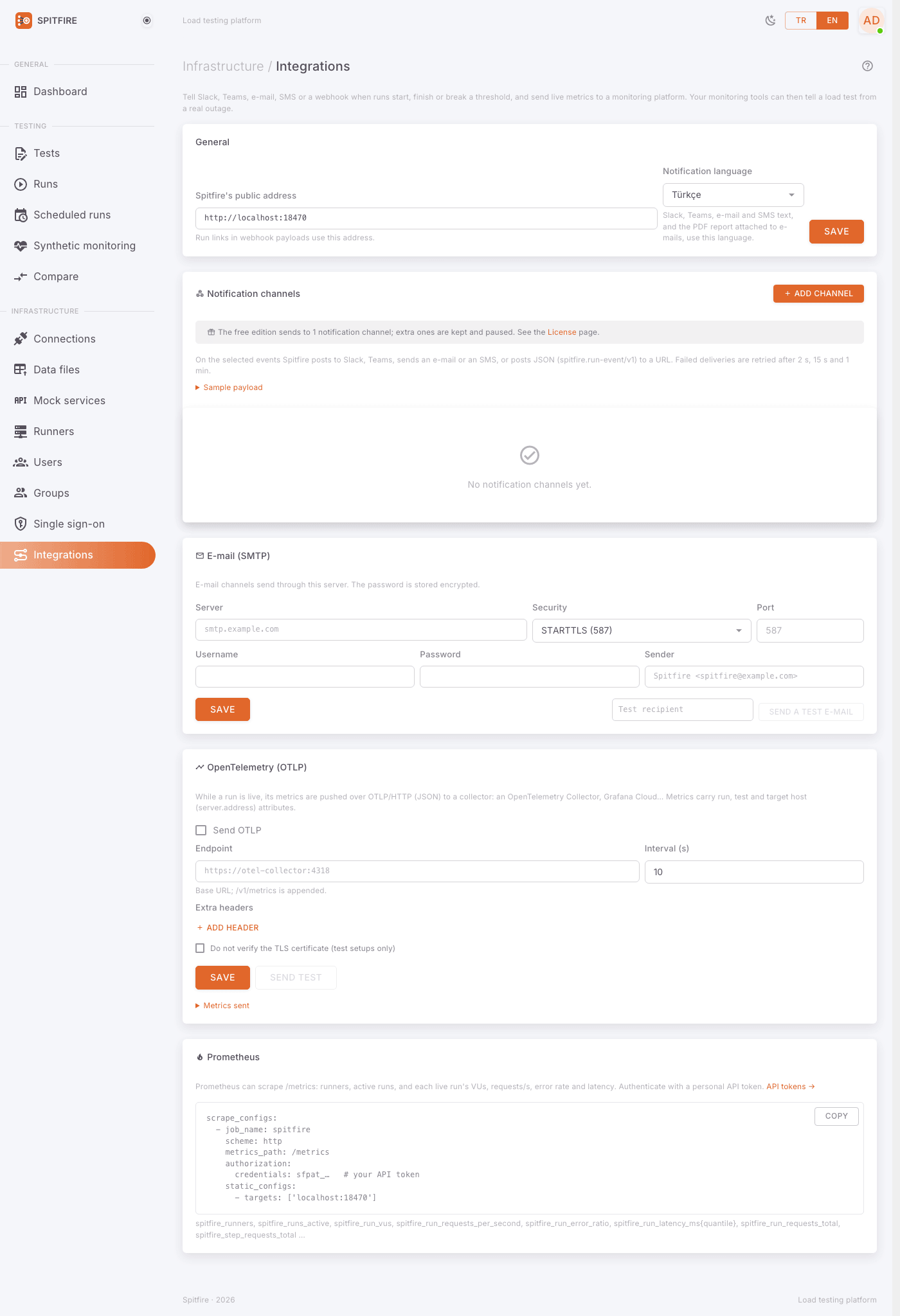 Integrations page
General settings first
- In the General card enter Spitfire's public address (e.g.
https://spitfire.example.com). Run links in notifications are built from it; if it is wrong, the links in the messages do not open. - Choose the Notification language. Slack, Teams, e-mail and SMS text, and the PDF report attached to e-mails, use this language.
- Press Save.
Adding a channel (common steps)
In the Notification channels card press Add channel.
Choose the Channel kind: Webhook (JSON), Slack, Microsoft Teams, E-mail, SMS (HTTP), Jira or ServiceNow.
Give it a Name (e.g. "Team Slack channel").
Fill in the target for its kind (sections below).
Under Events choose what it receives:
Event When run.starteda run started run.finisheda run finished (with summary and thresholds) run.regresseda run was clearly worse than the test's baseline run; sent after run.finishedrun.compareda comparative run (version A/B) finished; with the verdict and largest differences run.switch_neededa sequential comparison waits for a version switch (optional, for deploy pipelines) schedule.faileda scheduled run did not start or was missed monitor.downa synthetic monitor is down or slow (once per problem) monitor.recovereda synthetic monitor recovered monitor.drifta synthetic monitor left its living baseline: slower or failing more than the 7 days before (once per drift, optional) monitor.budgeta synthetic monitor's error budget is low or spent: its 30-day SLO is at risk (once each, optional) monitor.weeklyweekly watch summary: last week's synthetic monitors against the week before (Monday 09:00, optional; not for SMS or issue trackers) To avoid alert fatigue tick Only notify on problems: runs that pass and run starts are not sent; runs that break a threshold, fail or are stopped, regressions against the baseline, worse or invalid comparisons and scheduled runs that did not start are.
Under Tests you may pick specific tests. Left empty (All tests), every test's runs are reported.
Keep Enabled ticked and press Save.
Use Send test next to the channel and see the result under Deliveries.
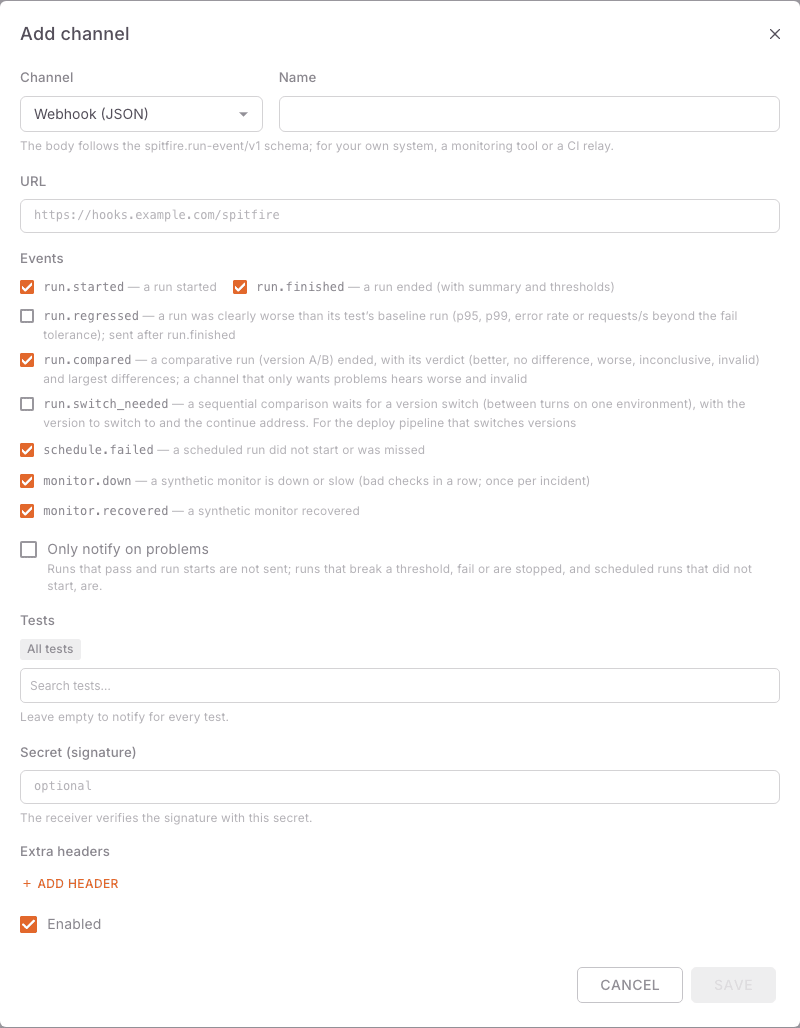 Add channel dialog
Failed deliveries are retried after 2 s, 15 s and 1 min. The Deliveries list shows each attempt's time, event, attempt number, result and run.
Slack
- In Slack create an Incoming Webhook (Apps → Incoming WebHooks) and pick the channel.
- Paste the address it gives (
https://hooks.slack.com/services/…) into Target in Spitfire. - The message carries the result, request count, p95, error rate, failed thresholds and a link to the run.
Microsoft Teams
- In the Teams channel create the Workflows → "Post to a channel when a webhook request is received" flow.
- Paste the flow's address into Target.
- The message arrives as an adaptive card.
E-mail channels send through your own SMTP server. Set SMTP up first:
- In the E-mail (SMTP) card fill in Server, Port, Security (STARTTLS (587), TLS (465) or None (trusted network only)), Username, Password and Sender. The password is stored encrypted.
- Press Save.
- Enter your own address as Test recipient and press Send a test e-mail. You should see "Sent.".
- Then create a channel with Add channel → E-mail; under Recipients put one address per line or comma-separated (at most 20).
E-mails about finished runs carry the run's PDF report; for a comparative run, the comparative PDF report.
With e-mail set up, Forgot password also sends a reset link by e-mail.
SMS (HTTP)
There are no provider presets: you describe the request your provider (or your own SMS gateway) expects, and Spitfire fills it in. It also works with your own gateway on a network closed off from the internet.
- Choose SMS (HTTP) as the Channel.
- Enter the Request URL (http/https) and pick the method (GET or POST). Placeholders may be used in the path and query, not in the host; redirects are not followed.
- Enter the Phone numbers in E.164 form (e.g.
+905321234567), one per line, at most 20. - Pick the Body type: None (values in the URL), Form (application/x-www-form-urlencoded), JSON or Raw text (with a Content-Type).
- Write the Body template. Placeholders:
{phone},{phones},{message},{message_url},{event},{test},{run_url},{secret}. - Do not write the API key into the URL or body: put it in Secret value ({secret}) and use
it as
{secret}in the template (e.g.Authorization: Bearer {secret}). Header values and the secret are stored encrypted. - One request for all recipients: off, each recipient gets its own request (
{phone}); on, the numbers are joined with commas and sent in one request ({phones}). - Success rule: HTTP 2xx counts as success. Many SMS APIs return an error with 200 in the body; if so, fill in Response must contain (optional) / Response must not contain (optional).
- At most notifications per hour (default 20) guards against floods and costs; each notification goes to every recipient.
- Turkish letters switch a message to UCS-2, where a part holds 70 characters. GSM-7 characters only (Turkish letters as ASCII) keeps a part at 160.
- Preview shows the request a sample message would make (nothing is sent).
- Save, then use Send a test SMS on the list to see the provider's answer.
Two examples (sms-gateway.example.com is a made-up gateway):
# Form POST, one request per recipient
POST https://sms-gateway.example.com/api/send
Body type: form-urlencoded
Body:      to={phone}&text={message}&sender=SPITFIRE&apikey={secret}
Response must contain: "status":"queued"

# JSON POST with an Authorization header, one request for all recipients
POST https://sms.example.com/v1/messages
Header:    Authorization: Bearer {secret}
Body type: JSON
Body:      {"recipients": "{phones}", "text": "{message}", "link": "{run_url}"}
A new SMS channel reports problems only by default (a failed threshold, a failed run, a
schedule that did not start, a monitor going down and recovering). Messages are short and plain,
e.g. Spitfire: 'Checkout flow' failed a threshold (p95 268 ms > 250 ms). https://spitfire.example.com/runs/…
Turn on Do not verify the TLS certificate only for an SMS gateway on your own network with a self-signed certificate.
Jira and ServiceNow (opening issues)
The Jira and ServiceNow channels are part of the issue tracking add-on module. It comes with Enterprise and is bought separately for the other editions. Every installation can try it once for 7 days from the Integrations page. See Add-on modules and their trial.
Problems land in your issue tracker on their own: a run that failed a threshold or failed, a worse comparison, a schedule that did not start, a monitor going down. The same problem does not open a new issue every time:
- The first time a test (monitor or schedule) has a problem, an issue is opened with the title, the numbers (requests, p95, error rate, failed thresholds, change against the baseline) and the run's link.
- While that issue is open, a new problem of the same test is a comment on it, not a new issue. When the test passes again (or the monitor recovers), that is a comment too.
- Once the issue is moved to the Done category in Jira or closed in ServiceNow, the next problem opens a new issue. While all is well and no issue is open, nothing is sent.
- Spitfire never closes issues; that is up to your team.
Jira (Cloud and Data Center, REST API v2):
- Choose Jira as the Channel and enter the Jira address (e.g.
https://acme.atlassian.net). - Authentication: for Jira Cloud, E-mail + API token (token: id.atlassian.com → Security → API tokens); for Data Center, a Personal access token.
- Enter the Project key (e.g.
PERF), the Issue type (defaultTask; it must exist in the project) and Labels (defaultspitfire). - Save, then press Send test in the list: Spitfire only checks the credentials and the project, it opens no issue.
ServiceNow (Table API):
- Choose ServiceNow as the Channel and enter the instance address (e.g.
https://acme.service-now.com). - Enter an Integration user allowed to create and update records, and its Password.
- The Table is
incidentby default. Optionally set the Assignment group, Caller, Category (a name or a sys_id), Urgency and Impact. - Records are opened with
correlation_id = spitfire:<subject>; repeats are work notes.
The token and password are stored encrypted. The Deliveries list links the issue each
delivery opened or commented on (e.g. PERF-12, INC0012345). For an internal server with a
self-signed certificate there is Do not verify the TLS certificate; turn it on only on your
own network.
Webhook (JSON)
For your own system, a monitoring tool or a CI relay. The body follows the
spitfire.run-event/v1 schema (target servers, the summary and thresholds at the end; for
run.compared the comparison's verdict and largest differences). Sample payload on the card
shows the schema.
- Choose Webhook (JSON) as the Channel and enter the Target address.
- Optionally enter a Secret (signature). Then the body's HMAC-SHA256 signature comes in the
X-Spitfire-Signature: sha256=<hex>header; the receiver verifies it with this secret. Every request also carriesX-Spitfire-EventandX-Spitfire-Delivery. - Add Extra headers if needed (e.g. your system's key). Header values are stored encrypted.
Live metrics with OTLP and Prometheus
The same page has two more cards:
OpenTelemetry (OTLP): while a run is going, live metrics are sent over OTLP/HTTP (JSON) to a collector (e.g. an OpenTelemetry Collector). Tick Send OTLP, enter the Endpoint (base URL;
/v1/metricsis appended) and the Interval (s). Metrics carry labels such asspitfire.run.id,spitfire.test.name,server.address.Prometheus: Prometheus can scrape
/metricswith a personal API token (spitfire_runners,spitfire_runs_active,spitfire_run_vus,spitfire_run_error_ratio,spitfire_run_latency_ms{quantile}…).Synthetic monitors on
/metrics: the same scrape carries the enabled monitors, labelledmonitor_id,monitor,testandenvironment. A user's token shows only the monitors they created; an admin's shows all of them.Metric Meaning spitfire_monitors{state}Monitor count by up,down,unknown,maintenance,pausedspitfire_monitor_up1 while the monitor passes, 0 while it fails (absent before the first check) spitfire_monitor_last_check_timestamp_secondsTime of the last check spitfire_monitor_interval_secondsThe interval in force now (peak hours, a watched deploy and the plan's minimum applied) spitfire_monitor_drifting{kind}1 while the last 24 hours drift from the living baseline ( slower,errors)spitfire_monitor_in_maintenance1 during planned maintenance spitfire_monitor_slo_target_ratio,spitfire_monitor_sli_ratioThe SLO target and the 30-day SLI spitfire_monitor_error_budget_remaining_ratioThe error budget left (below 0: the target is missed) spitfire_monitor_error_budget_burn_rateHow fast the last day spends the budget (1 = exactly on budget) spitfire_monitor_info{state}1 per monitor, for tables Monitors paused by the license have only
spitfire_monitor_info.Grafana dashboard: a ready-made dashboard for these metrics (live runs, synthetic monitors, runners, the controller's health), Prometheus alerting rules for the monitors (failing, stopped checking, error budget low, burning fast, drifting) and a scrape example are in the public examples repository: spitfire-examples/grafana. In Grafana: Dashboards → New → Import, upload the JSON and pick your Prometheus. Spitfire still sends its own alerts to your channels; the rules are for teams that route alerts through Alertmanager.
This is Spitfire exporting its own metrics. To bring your systems' metrics and traces into Spitfire, see Observability.
License notes
| Free | Growth yearly / Scale yearly | Enterprise | |
|---|---|---|---|
| Scheduled tests | 1 | unlimited | unlimited |
| Notification channels | 1 | unlimited | unlimited |
| Synthetic monitors | 1, at most every 15 minutes | 10 / 30 | unlimited |
Schedules, channels or monitors above the limit are not deleted; they are kept as Paused (license) and do not run (the oldest stay active).
Common problems
| Symptom | Cause | Fix |
|---|---|---|
| The schedule never ran, status missed | The controller was down or restarting at that time (more than 10 min late) | Missed runs are not made up; start one with Run now. See why the controller was down on System events. |
| Status skipped | The previous run was still going | Shorten the test or widen the cron interval. |
| Status did not start | No idle runner, license limit, writes not confirmed, or the owner lost access | Read the error on the row. For a test that changes data, tick the write confirmation in the schedule dialog. If the owner is disabled, recreate the schedule as another user. |
| "Invalid cron expression." | Not 5 fields, or wrong | Write minute hour day month weekday; check Next runs. |
| "Unknown time zone (e.g. Europe/Istanbul)." | Wrong zone name | Use an IANA name, e.g. Europe/Istanbul. |
| The monitor is always unknown | Checks are skipped: no idle runner | Runners busy in long runs cannot check. Set aside a runner/location for monitoring. |
| "The interval may be 1, 5, 15 or 60 minutes." | Invalid interval | Pick one of 1, 5, 15, 60 minutes. At most every 15 min on the free edition. |
| "The license makes this monitor check less often." | The license does not allow a shorter interval | Upgrade the license or lengthen the interval. |
| The monitor turned itself off | The test started writing, or its owner lost access | Save the monitor again with the write confirmation, or restore the access. |
| "The test cannot be monitored with these settings" | The test does not fit the monitor's light check | Read the detail in the dialog; simplify the test. |
| No notification arrives | Channel disabled, not subscribed to the event, Only notify on problems on, outside the test filter, or paused by the license | Check the channel's Events and Tests; try Send test; look at the result under Deliveries. |
| The link in the message does not open | Spitfire's public address empty or wrong | Save the right address in the General card. |
Slack/Teams answers 4xx |
The webhook was deleted or copied wrong | Create a new webhook in Slack/Teams and update Target. |
| E-mail does not go out | Wrong SMTP settings, port closed, or security type mismatch | Try Send a test e-mail; use STARTTLS for 587, TLS for 465. Errors show on System events with the Notification channels source. |
| SMS "succeeded" but nothing arrived | The provider returns the error with 200 in the body | Add a Response must contain / must not contain rule. Read the answer Send a test SMS shows. |
| SMS stop for an hour | The At most notifications per hour limit was reached | The delivery log says so; raise the limit or narrow to problems. |
| Phone numbers refused | Wrong number format | Use E.164, starting with +90…. |
Related pages
- CI/CD integration — running tests from a pipeline
- Version comparison — scheduled comparisons and
run.compared - Observability — reading your systems' traces and metrics
- Troubleshooting — notification channel errors, system events
- Scheduled runs
In Spitfire: /schedules· Synthetic monitoringIn Spitfire: /monitors· IntegrationsIn Spitfire: /integrations