Version: 0.56.0This documentation is for Spitfire 0.56.0.
Observability (OpenTelemetry, Prometheus, Tempo, Jaeger, Loki, Zabbix, Datadog, New Relic, Dynatrace, Instana)
A load test tells you "p95 went to 900 ms"; it does not tell you why. This page explains how
to get closer to the root cause by connecting the trace, metric and log data your systems already
produce: the OTLP receiver, Prometheus (and Grafana Mimir, Thanos, VictoriaMetrics), Tempo, Jaeger,
Loki, Zabbix problems, Datadog alerts, New Relic incidents, Dynatrace problems, Instana events,
traceparent, the Backend tab on the run page,
breaking-point findings and the resource overlay on the charts.
What it does
- Spitfire installs no agent of its own. During a load test it reads the observability data your systems produce, through open standards and open tools only.
- It aligns that data with the run's load stages (VU levels or arrival-rate stages): "at the 450 VU stage orders-db p95 went 18 ms → 410 ms".
- When the system breaks, it ranks which resource saturated or jumped at that moment: "The system broke at 560 VUs; at the same time the orders-db connection pool filled up (pending connections 0 → 48) and checkout's CPU rose from 41% to 97%."
- With
traceparenton, it finds the test's slowest and failed requests in your traces.
Spitfire says "at the same time", never "because". It keeps measured and unmeasured apart; when there is no data, it says so.
When to use it
- When a threshold fails or a breaking point is found, to see where the bottleneck is.
- In a comparative run, to see in the backend why arm B is slower (Version comparison).
- If you already run an OpenTelemetry Collector, Prometheus, Tempo/Jaeger or Loki: the setup takes minutes.
- If your hosts are monitored by Zabbix: to see which problems it raised while the load ran, and which of them opened just before the system broke.
- If you have monitors in Datadog: to see which of them alerted while the load ran, and which alert opened just before the system broke.
- If you use New Relic, Dynatrace or Instana: to see which incidents, problems or events those systems opened while the load ran, and which one opened just before the system broke.
Connection kinds
| Connection | Direction | What Spitfire uses |
|---|---|---|
| OTLP receiver | your OpenTelemetry Collector → Spitfire | traces, metrics (gauge, sum), error and warning logs |
| Prometheus (and compatibles: Grafana Mimir, Thanos, VictoriaMetrics) | Spitfire → /api/v1/query_range |
your PromQL: per-service latency (p95), error ratio, resources |
| Tempo | Spitfire → /api/search (TraceQL), /api/traces/{id} |
a sample of each stage's traces |
| Jaeger | Spitfire → query API /api/traces |
a sample of each stage's traces |
| Loki | Spitfire → /loki/api/v1/query_range |
metric LogQL counting error lines per service |
| Zabbix | Spitfire → /api_jsonrpc.php (read-only) |
the problems that opened in the run's window, by host, severity and tag |
| Datadog | Spitfire → https://api.<site> (read-only) |
the monitor alerts that opened in the run's window and their recoveries, by host, state, priority and tag |
| New Relic | Spitfire → NerdGraph (api.newrelic.com/graphql, read-only) |
the alert incidents that opened in the run's window and their closings, by entity, priority and tag |
| Dynatrace | Spitfire → /api/v2/problems (read-only) |
the problems that opened in the run's window and their closings, by affected entity, category, management zone and tag |
| Instana | Spitfire → /api/events (read-only) |
the issues and incidents that opened in the run's window and their closings, by entity and severity |
There are two ways of working:
- OTLP receiver (push): your Collector sends data to Spitfire. Spitfire keeps only data that falls into a run's window (from 30 s before its start to 60 s after its end).
- Query connections (pull): Spitfire queries only the run's window after the run ends (90 s later, for late data). An admin can recompute from the Backend tab.
Which one? If you already have a Collector, the OTLP receiver brings the richest data (traces, metrics and logs together). If you cannot touch the Collector, add query connections to your existing Prometheus/Tempo/Loki. Both can be used together.
Adding a connection
The Observability page is for admins only: Infrastructure → Observability in the left menu.
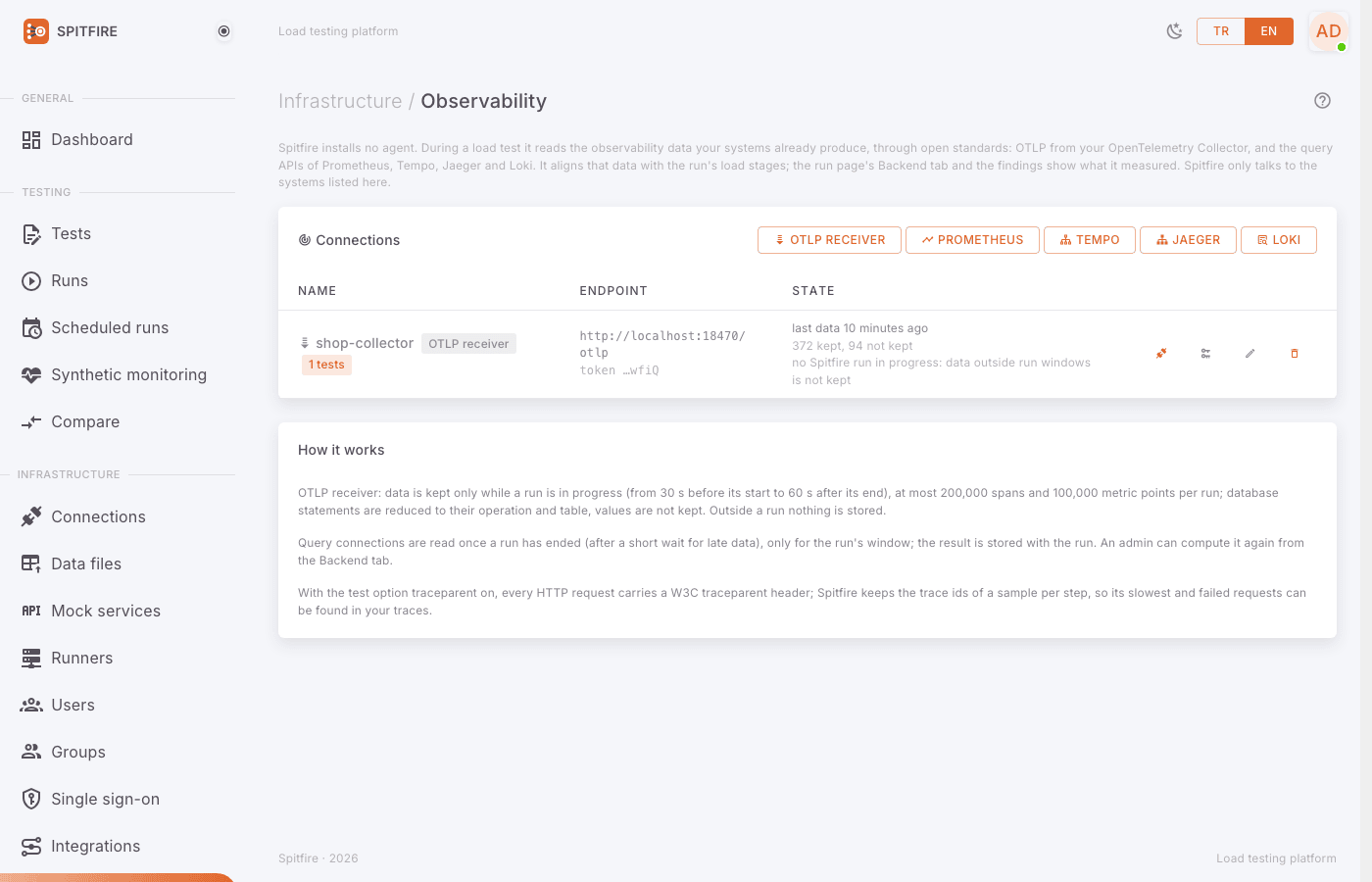 Observability page
Common steps:
- On the Observability page, press the button of the kind you want in the header of the Connections card: OTLP receiver, Prometheus, Tempo, Jaeger, Loki, Zabbix, Datadog, New Relic, Dynatrace or Instana.
- Give it a Name (e.g. "prod-collector", "mimir-team-a").
- Fill in the fields for the kind (sections below).
- Keep On ticked and press Save.
- For query connections, press Test the connection on the list to check the address and credentials.
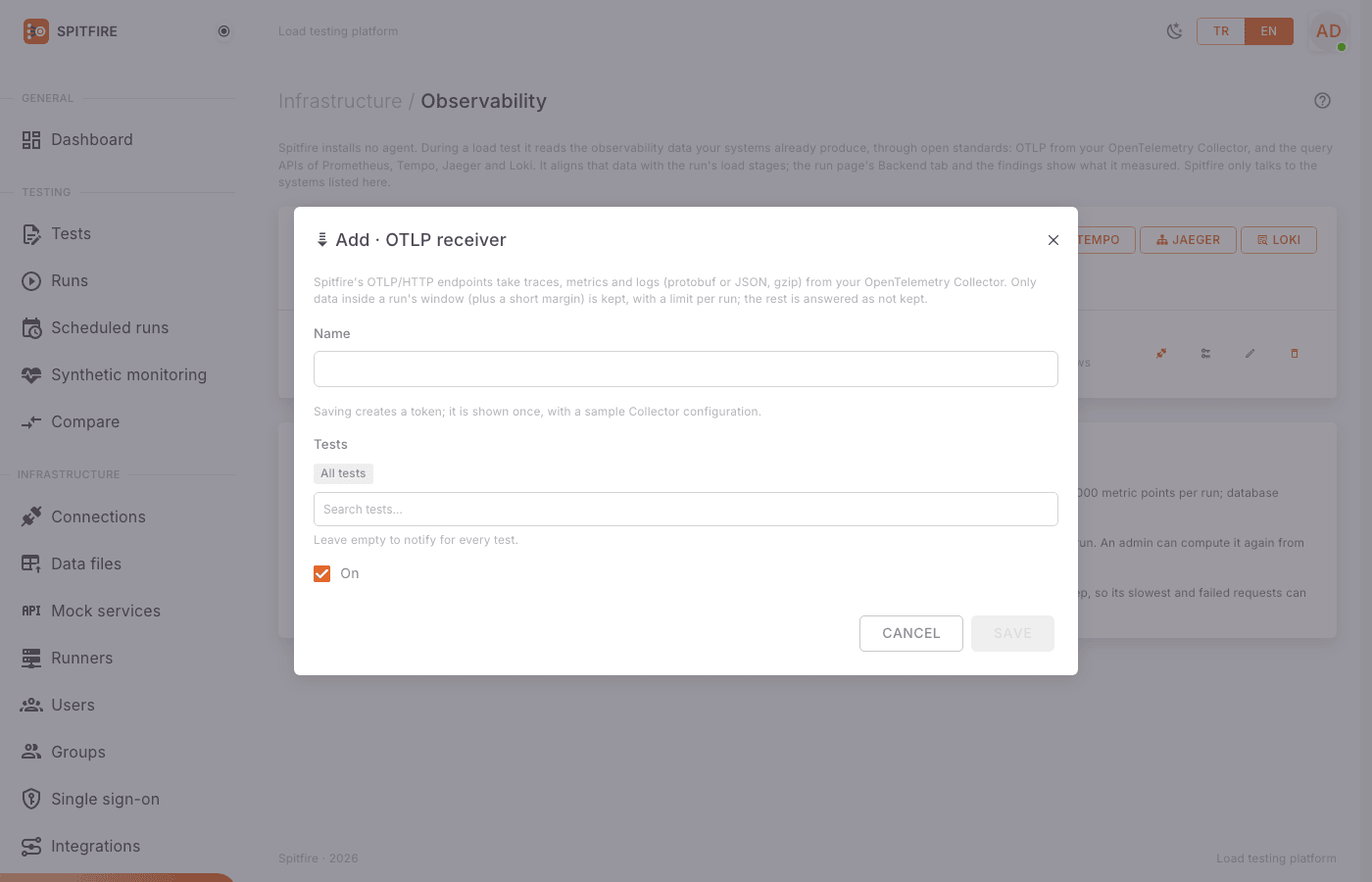 Add connection dialog
Tokens and passwords are encrypted with SPITFIRE_SECRET_KEY, like connection secrets. A stored
token or password is kept when left empty, as long as the address stays on the same server.
OTLP receiver (OpenTelemetry Collector)
Spitfire serves OTLP/HTTP on its HTTP port at /otlp/v1/traces, /otlp/v1/metrics and
/otlp/v1/logs (protobuf or JSON, gzipped or not).
Add → OTLP receiver, give it a name and save.
Saving generates a token (
sfotlp_…), shown once, with a sample Collector configuration. Copy the token now: it is not shown again (only its hash is stored).Add one exporter to your Collector, next to the existing ones:
exporters:
  otlphttp/spitfire:
    endpoint: https://spitfire.example.com/otlp   # the exporter appends /v1/traces etc.
    headers:
      Authorization: "Bearer sfotlp_…"
    compression: gzip

service:
  pipelines:
    traces:
      receivers: [otlp]
      processors: [batch]
      exporters: [otlphttp/spitfire]   # and your existing exporters
    metrics:
      receivers: [otlp]
      processors: [batch]
      exporters: [otlphttp/spitfire]
    logs:
      receivers: [otlp]
      processors: [batch]
      exporters: [otlphttp/spitfire]
Restart the Collector and press Done.
Start a run. The list shows "last data …" and "x kept, y not kept" next to the connection; data arriving outside a run is not kept (that is normal).
Limits: at most 200,000 spans and 100,000 metric points per run, 16 MB per request. The rest gets a
rejected answer (OTLP partial success), and the Collector does not retry. Database statements are
reduced to their operation and table (SELECT … FROM order_items); values are never kept.
If the token leaks, press New token on the list. The current token stops working at once; update the Collector's configuration with the new one.
Prometheus, Grafana Mimir, Thanos, VictoriaMetrics
One Prometheus connection serves them all; the query API's path prefix goes into the connection's URL.
- Add → Prometheus.
- Enter the Endpoint:
- Prometheus:
http://prometheus:9090 - Grafana Mimir: with the
/prometheusprefix, e.g.http://mimir-query-frontend:8080/prometheus. Spitfire callshttp://mimir-query-frontend:8080/prometheus/api/v1/query_range. - Thanos:
http://thanos-query:9090 - VictoriaMetrics:
http://victoria-metrics:8428
- Prometheus:
- Authentication: None, Bearer token, User name and password or Key in a header (with Header name).
- For a multi-tenant setup (Mimir) enter the tenant (e.g.
team-a) under Tenant (X-Scope-OrgID). - In Queries press Add a query for each one:
- What it measures: Latency (p95), Error ratio or Resource.
- Write the PromQL.
$__intervalis replaced with the query step. - An optional service (optional); for a resource, name (e.g. CPU) and unit. Without a service, each series is named by its service label.
- Use the Example: … buttons for ready-made queries.
- Save and press Test the connection.
PromQL examples:
# Per-service latency (seconds) — Latency (p95)
histogram_quantile(0.95, sum by (le, service_name) (rate(http_server_request_duration_seconds_bucket[$__interval])))

# Error ratio
sum by (service_name) (rate(http_server_request_duration_seconds_count{http_response_status_code=~"5.."}[$__interval])) / sum by (service_name) (rate(http_server_request_duration_seconds_count[$__interval]))

# Resource: CPU time
sum by (service_name) (rate(process_cpu_time_seconds_total[$__interval]))

# Resource: a pod's CPU against its limit (0.95 and above counts as saturated)
sum by (pod) (rate(container_cpu_usage_seconds_total{container!=""}[$__interval])) / sum by (pod) (kube_pod_container_resource_limits{resource="cpu"})

# Resource: requests waiting for a database connection (OpenTelemetry DB client metrics)
sum by (service_name, db_client_connection_pool_name) (db_client_connection_pending_requests)Root cause ranking gets the most out of CPU (against its limit), memory, requests waiting on a connection pool and queue depth (depth, lag, backlog). Add at least those as Resource.
Tempo
- Add → Tempo, enter the address (e.g.
http://tempo:3200) and, if needed, the authentication and Tenant (X-Scope-OrgID). - The TraceQL query runs for each load stage.
{}finds every trace; narrow it to your services:{ resource.service.name = "orders" }. - Traces per load stage: how many traces to read per stage.
Jaeger
- Add → Jaeger, enter the query API's address.
- Services: comma-separated service names. Empty: every service the query API lists (at most 20).
- Set Traces per load stage.
Loki
Add → Loki, enter the address and, if needed, the Tenant (X-Scope-OrgID).
Write a LogQL query that returns a metric grouped by the service label (
count_over_time,rate…):sum by (service_name) (count_over_time({service_name=~".+"} |~ "(?i)(error|exception|fatal)" [$__interval]))Service label: the label that names the service. Empty:
service_name,service,joborapp.
Zabbix
After a run Spitfire reads, over the Zabbix API, the problems that opened in the run's window and places them on the load stages and the breaking point. Access is read-only: it asks for the API version, host groups, hosts and problems, and never writes to Zabbix. Zabbix 5.4 and later.
The Zabbix connection is part of the monitoring events add-on. The add-on comes with the Enterprise plan, and with any other edition (the free one included) when its key carries it; every installation may try it once for 7 days. See License and trial.
In Zabbix, create a user with a read-only role that sees the host groups in question, and an API token for it (Users → API tokens). What the token's user may see is what Spitfire can read.
Add → Zabbix. Address: the address of the Zabbix frontend, e.g.
https://zabbix.example.com(the API is at/api_jsonrpc.phpunder it). Paste the API token.Narrow what is read (all optional):
Field Meaning Default Host groups Comma-separated, exact names (up to 20) empty Hosts Comma-separated, technical or visible names (up to 20) empty Problem tags tag=value, or justtagfor any value; every one must match (up to 10)empty Lowest severity Problems below it are not read Warning Before the run (s) Problems that opened this long before the start are read too 120 After the run (s) …and this long after the end 300 Problems of hosts in any of the groups or among the hosts are read; with both empty, everything the token sees. The margins are at most 3600 s.
Save, then Test the connection: it reports the Zabbix version and how many hosts match the filter, e.g. "Zabbix 7.0.4: 12 hosts match the filter". A group or host name that Zabbix does not know is named in the error.
How much is read: at most 1,000 problems per connection and run; the 200 most relevant are kept with the run (those at the break and the most severe first), and the page says how many were left out. Only the time, host, name, severity and tags of a problem are kept.
Zabbix is read 90 s after the run ends, like the other query connections; a problem that opens later in the After the run margin is picked up by Compute again on the Backend tab.
Zabbix: license and trial
All of this holds for the Datadog, New Relic, Dynatrace and Instana connections too: they all belong to the same add-on.
- The Zabbix connection belongs to the monitoring events add-on: one module, with one trial. A key may carry the whole module or only the connections you use (Spitfire 0.40.0 or later; see Single connections). Enterprise keys include it. Every other edition, the free one included, has it when its key carries the add-on; on the free edition that key turns on this module only, until the day it ends, and the page shows that day.
- Without it, an installation admin can press Start the 7-day trial on the Observability page. The trial is started by hand, once per installation, covers the whole module and runs for 7 days; during it the Zabbix, Datadog, New Relic, Dynatrace and Instana connections work fully and the page shows the days left. It is kept only in this installation: nothing is sent anywhere. The start is written to the audit log.
- When the trial (or a key that had the add-on) ends: the add-on's connections are kept but no longer read or tested (the not read (license) badge), new ones cannot be added, and the problems and alerts already read for past runs stay with those runs. A connection can still be turned off or deleted. A key with the add-on makes them work again at once.
Datadog
After a run Spitfire reads, over the Datadog API, the monitor alerts that opened in the run's window and their recoveries, and places them on the load stages and the breaking point, as it does with Zabbix problems. Access is read-only: Spitfire validates the API key, counts the monitors, and reads the monitors' state changes and the monitor groups that are not OK. It never creates or changes anything in Datadog.
The Datadog connection is part of the same monitoring events add-on as the Zabbix connection: one trial covers both, and a key may carry either alone. See License and trial.
In Datadog, open Organization Settings. Under API Keys create (or pick) an API key. Under Application Keys create an Application key and give it only these two scopes:
Scope What Spitfire reads with it monitors_readhow many monitors there are, and the monitor groups in Alert, Warn or No Data events_readthe monitors' state changes (alert, warn, no data, recovery) in the run's window Both are read scopes. Without one of them Datadog refuses the key and the error names the missing scope. An Application key also sees only what its owner may see; a service account with a read-only role is a good owner.
Add → Datadog. Pick the Site: the domain you sign in to Datadog on (
app.datadoghq.euis the sitedatadoghq.eu). The sites aredatadoghq.com,us3.datadoghq.com,us5.datadoghq.com,datadoghq.eu,ap1.datadoghq.com,ap2.datadoghq.com,uk1.datadoghq.com,ddog-gov.comandus2.ddog-gov.com; Spitfire callshttps://api.<site>. Keys belong to one site. Custom API URL is for a proxy in front of the Datadog API.Paste the API key and the Application key. Both are stored encrypted and never shown again; left empty on a later edit they are kept, as long as the site stays the same.
Narrow what is read (all optional):
Field Meaning Default Tags key:value, or justkeyfor any value; every one must match a tag of the monitor or of the group that alerted (host,service,env…) (up to 10)empty Lowest state No Data, Warn or Alert; states below it are not read Warn Monitor priority Any (also none), or P1 down to the priority you pick Any Before the run (s) Alerts that opened this long before the start are read too 120 After the run (s) …and this long after the end 300 The margins are at most 3600 s.
Save, then Test the connection: it reports the site and how many monitors the keys see, e.g. "Datadog datadoghq.eu: the API key and the Application key are valid; 42 monitors visible, 3 of them in Alert, Warn or No Data now".
What counts as one alert: one stay of a monitor, or of one group of a multi alert monitor, at or
above the Lowest state. It opens with the first state change that reaches that state and
recovers when the monitor goes back below it; a Warn that turns into an Alert is one alert, shown
with the highest state it reached. The host is the group's host tag; a monitor without one has
no host and is listed by its name. The states are Datadog's own (No Data, Warn, Alert), and the
monitor's priority is shown next to them (P1 to P5).
How much is read: at most 1,000 state changes per connection and run; the 200 most relevant alerts are kept with the run (those at the break and the highest states first), and the page says how many were left out. Only the time, host, monitor name, state, priority and tags of an alert are kept.
Datadog is read 90 s after the run ends, like the other query connections. Datadog itself records a state change about a minute after it happens, so an alert of the run's last minute, or one in the After the run margin, is picked up by Compute again on the Backend tab. When Datadog's rate limit is reached, Spitfire waits for the reset Datadog announces, as long as that fits into the two minutes a read may take; otherwise it says so and nothing is read until Compute again.
New Relic
After a run Spitfire reads, over New Relic's NerdGraph API, the alert incidents that opened in the
run's window and their closings, and places them on the load stages and the breaking point, as it
does with Zabbix problems. Access is read-only: Spitfire runs NRQL queries on the account's
NrAiIncident events (the openings and closings of incidents) and never creates or changes
anything in New Relic.
The New Relic, Dynatrace and Instana connections are part of the same monitoring events add-on as the Zabbix connection. See License and trial.
In New Relic, open API keys and create (or pick) a User key (
NRAK-…). The key acts as its user: a user who can see the account's alerts is enough, a read-only one is best.Add → New Relic. Pick the Data center your account is on: US (
api.newrelic.com) or EU (api.eu.newrelic.com; you sign in onone.eu.newrelic.com). Custom NerdGraph URL is for a proxy in front of the API.Enter the Account ID (the number in New Relic's URL, or under Administration → Access management → Accounts) and paste the User key. The key is stored encrypted and never shown again.
Narrow what is read (all optional):
Field Meaning Default Tags key:value, or justkeyfor any value; every one must match a tag of the incident's entity, orpolicy:<policy name>(up to 10)empty Lowest priority Low, Medium, High or Critical; incidents below it are not read Medium Before the run (s) / After the run (s) Incidents that opened this long before the start and after the end are read too 120 / 300 Save, then Test the connection: it reports the account and how many incidents opened in the last 24 hours.
One incident is one row: its host is the entity's name, its name the alert condition's, its severity the incident's priority. Incidents that opened up to a day before the run and were still open when it started are listed apart.
Dynatrace
After a run Spitfire reads, over the Dynatrace Environment API, the problems that opened in the
run's window and their closings. Access is read-only, with one call (GET /api/v2/problems).
In Dynatrace, open Access tokens → Generate new token and give it only the scope
problems.read.Add → Dynatrace. The URL is the environment's address:
https://<environment-id>.live.dynatrace.comfor SaaS (not theapps.dynatrace.comaddress), orhttps://<host>/e/<environment-id>for Managed.Paste the API token. It is stored encrypted and never shown again.
Narrow what is read (all optional):
Field Meaning Default Management zones Comma-separated, exact names; problems in any of them are read every zone the token sees Entity tags key:value, or justkey; every one must be on an entity the problem affectsempty Lowest category Monitoring unavailable, Custom alert, Slowdown (performance and resource contention), Error, Availability Custom alert Before the run (s) / After the run (s) Problems that opened this long before the start and after the end are read too 120 / 300 Save, then Test the connection: it reports how many problems there were in the last 24 hours and how many are open now.
A problem's host is the entities it affects (or its root cause), its name its title, its severity its category. Dynatrace opens a problem once its anomaly detection has confirmed the deviation, usually a few minutes in; a problem of the run's last minutes is picked up by Compute again.
Instana
After a run Spitfire reads, over the Instana API, the issues and incidents that opened in the run's
window and their closings. Access is read-only, with one call (GET /api/events); changes are
not read.
- In Instana, open Settings → API tokens and create a token. Reading events needs no extra permission.
- Add → Instana. The URL is the tenant unit's address,
https://<unit>-<tenant>.instana.io, or your self-hosted backend's. - Paste the API token and pick the Lowest severity: Warning (warnings and critical ones) or Critical. Set the margins like the other kinds.
- Save, then Test the connection: it reports how many issues and incidents there were in the last 24 hours and how many are open now.
An event's host is its entity's label, its name the problem Instana names. Instana's events carry no tags, so there is no tag filter.
For all three: at most 1,000 problems per connection and run are read; the 200 most relevant are kept with the run, like Datadog's alerts. When the system's rate limit is reached, Spitfire waits for the reset it announces, as long as that fits into the two minutes a read may take; otherwise it says so and nothing is read until Compute again.
traceparent: finding the test's requests in your traces
With traceparent on in a test, every HTTP request carries the W3C traceparent header (sampled
flag set), unless the step sets one itself. Runners keep the trace ids of the slowest and the first
failed request per step and 10 s (at most 2,000 per runner, 5,000 per run). The Backend tab
finds those requests in your traces: the service's own duration and the slowest span below it.
To turn it on:
- Open the test with Edit and go to the Options tab.
- Under traceparent header choose On: W3C traceparent (sampled) on HTTP requests.
- Save.
In JSON:
{ "options": { "traceparent": "on" } }It is off by default: with it on, every test request asks for its trace to be kept. At load-test volume that can take room in your tracing backend. Turn it on with your trace storage in mind.
Make sure your services accept the incoming traceparent header and pass the trace context on
(context propagation); OpenTelemetry SDKs do this by default.
Reading the Backend tab
On the run page the Backend tab shows, per load stage:
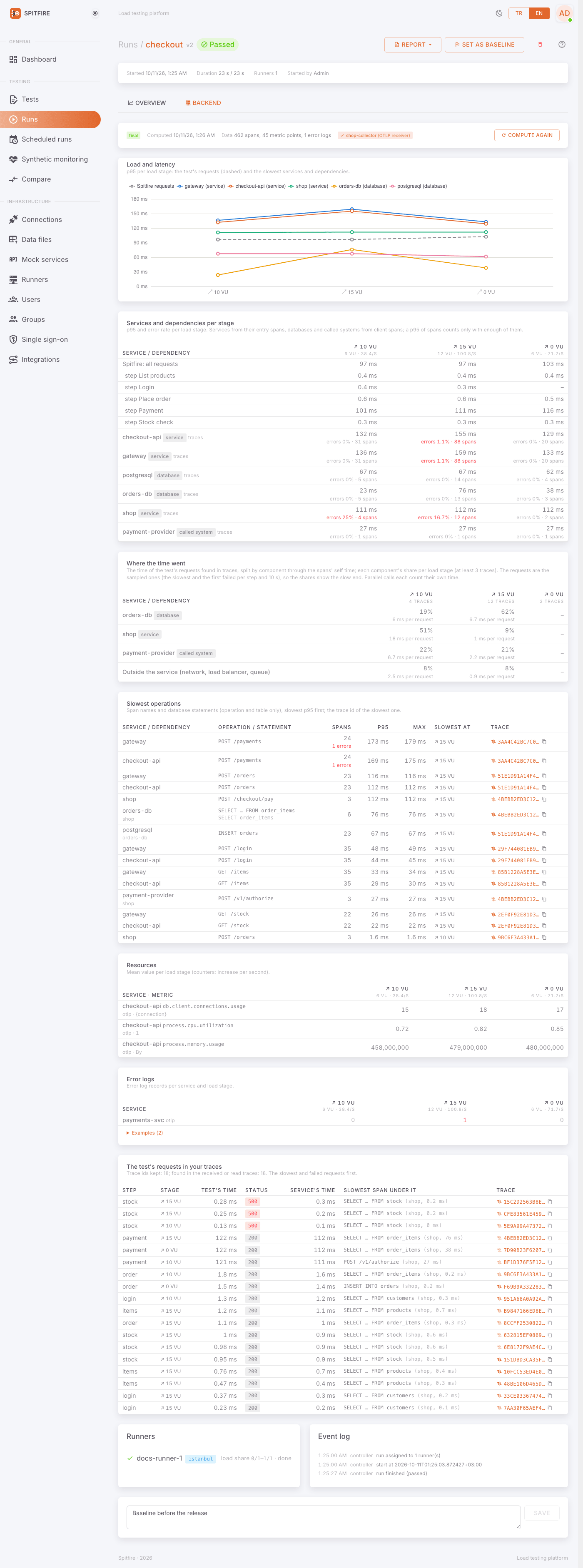 Backend tab
- At the top, the status: live: received data only (the run is going), waiting for late data, final or no connection. The Data line says how many spans, metric points and error records came in.
- Load and latency: p95 per load stage — the test's requests (dashed) and the slowest services and dependencies.
- Services and dependencies per stage: the p95 and error ratio of every service (entry spans), database and called system (client spans), or Prometheus query. The Spitfire: all requests row is there for comparison.
- Where the time went: the time of the test's requests found in traces, by component; each component's share and mean time per request per load stage (see Where the time went).
- Slowest operations: span names and database statements, highest p95 first; the Trace id of the slowest.
- Resources: the mean value per load stage (counters as their per-second increase).
- Error logs: error records per service and stage, with samples.
- The test's requests in your traces: how many trace ids were kept and found; for each, Test's time, Service's time and Slowest span under it.
Clicking a Trace id opens that trace as a waterfall: the spans in tree order, each with its service, name, start and duration, error flag and database statement; the bars are a time line from the trace's start. The spans come from what the OTLP receiver kept for the run, else from the run's Tempo or Jaeger connections. Tempo and Jaeger are asked only for a trace the run points at (a request of the test, the slowest operation, a log record). When the trace is not found (not sampled, expired, or not sent by the system) the window says so. The copy icon next to the id puts the id on the clipboard.
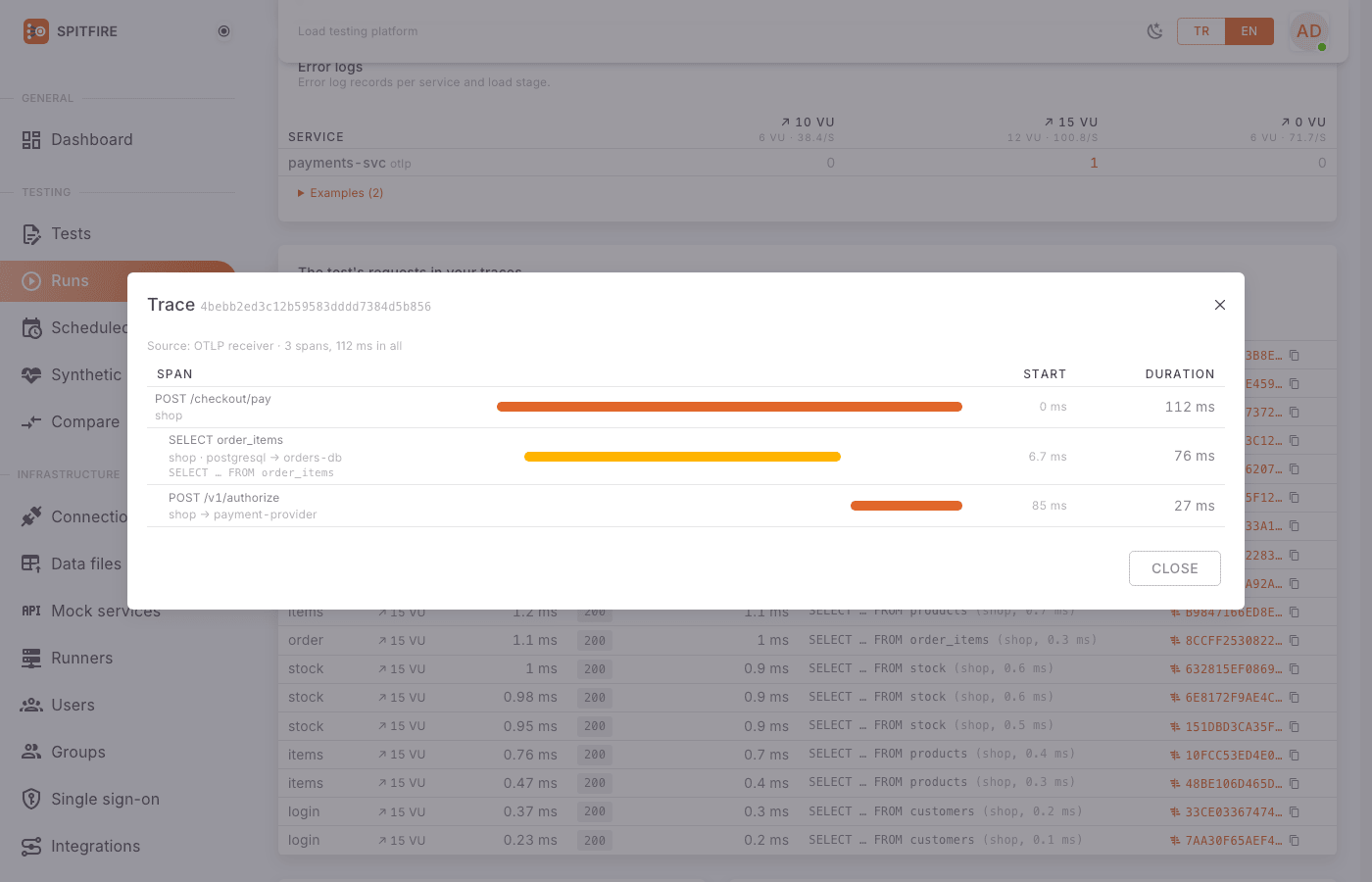 Trace waterfall
Compute again at the top right (admins) re-reads the query connections, e.g. after you fixed a query.
Backend findings follow the run findings' rule: only what the data shows, with its numbers. Example:
At the 450 VU stage orders-db (database) p95 18 ms → 410 ms (240 spans). At the same time the checkout step crossed its threshold: p95 520 ms, limit 300 ms. Slowest operation:
SELECT … FROM order_items.
Zabbix problems around the run
With a Zabbix connection, the Zabbix problems around the run card lists the problems of the run's window:
- The line at the top counts those that opened during the run, after it and those already open at the start; if the run broke, also when it broke and how many problems opened at the break.
- Each row: when it opened (from the run's start), severity (Zabbix's own names: Information, Warning, Average, High, Disaster), host, problem name and tags, the load stage it opened in, how long before or after the break, and when it recovered (open: not yet).
- at the break: the problem opened in the stage the run broke in, or within the Before the run margin before the break. These come first, the closest before the break on top.
- also measured: …: the host or its
servicetag carries the name of a service or resource the Backend tab measured too. - From before the run: problems that opened before the load began. They are not an effect of this run, but they may have shaped its results; they are listed apart.
The findings word it the same way:
Zabbix: a problem on db01 opened 18 s before the break. … The closest before the break: High CPU on db01 (High, opened at 1:10), 18 s before the run broke at the 450 VU stage (at 1:28).
This is an estimate. A problem that opened shortly before the break coincides with it in time; it shows where to look first and is not a proven cause. A trigger may also fire late (its evaluation period), so a problem that opened just after the break can describe the same moment.
Datadog alerts around the run
With a Datadog connection the same card is titled Datadog alerts around the run and lists the monitor alerts of the run's window the same way; with both kinds connected it is Zabbix problems and Datadog alerts around the run and each row says where it comes from. What differs:
- The severity column shows Datadog's state (No Data, Warn, Alert) and, when the monitor has one, its priority (P1 to P5).
- The host is the
hosttag of the group that alerted; a monitor without one shows a dash and is named by the monitor. - Recovered is when the monitor went back below the Lowest state.
The findings carry the same caution:
Datadog: an alert on shop-db-1 opened 18 s before the break. … The closest before the break: High CPU on shop-db-1 (Alert, opened at 1:10), 18 s before the run broke at the 450 VU stage (at 1:28).
A monitor evaluates over a time window and Datadog records the change about a minute later, so here too an alert that opened just after the break can describe the same moment. It is an estimate of where to look, never a proven cause.
New Relic, Dynatrace and Instana around the run
With one of these the card is titled after it (New Relic incidents, Dynatrace problems, Instana events around the run); with more than one kind connected it is Monitoring events around the run and each row says where it comes from. The severity column shows the system's own scale: New Relic's priority (Low to Critical), Dynatrace's category (Monitoring unavailable, Custom alert, Slowdown, Error, Availability), Instana's severity (Warning, Critical). The findings carry the same caution: a coincidence in time, an estimate of where to look, never a proven cause.
Root cause ranking (breaking point)
When a run breaks — a failed p95 or error-rate threshold (req_duration p(95)<…,
req_failed rate<…; for the whole run or a step) or the step a breakpoint run could not pass —
Spitfire takes the load stage where it broke and the previous stage of the same kind, and ranks
every resource series from every connected source:
- absolute saturation: CPU at 95% of its limit or more, memory at 90% or more, requests waiting for a pool connection (above zero and grown), a queue (depth, lag, backlog) that at least doubled and passed 10;
- then the largest relative jump against the previous stage (at least 1.5×; rising from zero counts as the largest).
The top three go into one finding:
The system broke at 560 VUs (p95 threshold failed: 900 ms, limit 500 ms); at the same time the orders-db connection pool filled up (pending connections 0 → 48) and checkout's CPU rose from 41% to 97%.
If no series moved it says so; if there was no resource data for that moment it says that. A breakpoint run that stopped on its VU limit (not the system) has no breaking point. The ranking is deterministic: the same data always gives the same finding.
Where the time went
With traceparent on and the test's requests found in your traces, each request's time — what
Spitfire measured — is split:
- each span's self time (its duration minus what its children cover) goes to its component: a service, a database or a called system;
- the time before and after the system's first span goes to Outside the service (network, load balancer, queue).
The Where the time went card on the Backend tab shows each component's share and mean time per request per load stage; stages with at least 3 found traces count. Parallel calls each count their own time, so a share is of the time attributed. The requests are the sampled ones (the slowest and the first failed per step and 10 s), so the shares describe the slow end — which is what a breaking point is about.
When a component's share grew by at least 10 points, to 20% or more, from the stage before the breaking point, the breaking-point finding adds it and the card marks that row:
In the sampled test requests, the share of the time spent in orders-db went from 12% to 71% (40 traces).
This too states what was measured at the same time: where the time went, not why it went there.
Resource metrics on the charts (overlay)
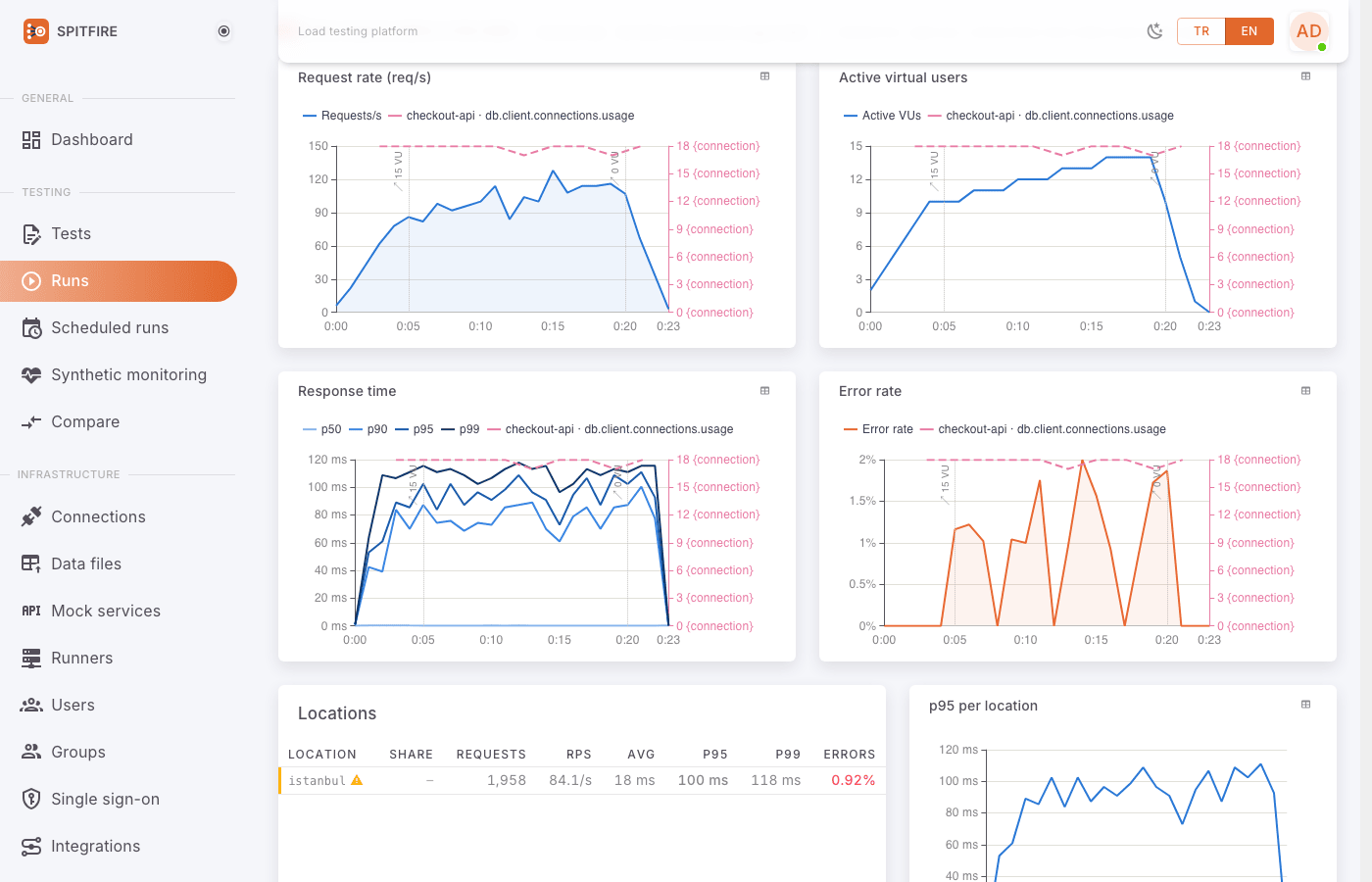
On the run page, Show resource metrics and monitoring events on the charts:
- Tick it.
- Pick a series from Resource series (a Prometheus resource query or an OTLP metric; counters as their per-second increase).
- The series is drawn on the run's own charts — request rate, VUs, response time, error rate — as a dashed line on its own right axis, aligned in time; the start of each load stage is marked with a dotted vertical line.
 Resource overlay
You see in one chart whether the response time shot up exactly when CPU passed 90%.
With a monitoring events connection (Zabbix, Datadog, New Relic, Dynatrace, Instana), the problems, alerts and incidents that opened during the run are marked on the same charts with a solid vertical line (at most 30, the most relevant; the first few carry the host's name, or the monitor's when there is no host), with or without a resource series picked.
Retention
Raw data received over OTLP is pruned together with the run logs; the computed result (Backend tab, findings) stays with the run. Removing a connection does not delete data kept for past runs.
Common problems
| Symptom | Cause | Fix |
|---|---|---|
| No observability connection for this test | No connection defined | An admin adds one on the Observability page (Set up observability). |
| No backend data in this run's window | The Collector does not send, or the queries are empty for that time | Check the Collector's logs; is the token right (Authorization: Bearer sfotlp_…), does the endpoint end in /otlp? Press Test the connection for query connections. |
The Collector gets 401 |
Wrong token, or it was replaced with New token | Update the header in the Collector with the current token. |
| The list keeps showing "y not kept" | Data arrives outside a run window, or the per-run limit was reached | Data outside a run is not kept; that is normal. If the limit was reached, sample in the Collector. |
| A "… could not be read" finding | Wrong address, credentials or tenant on a query connection | See the error with Test the connection; for Mimir check the /prometheus prefix and the Tenant. |
| The latency query is empty | The metric has another name in your system | Try the query in Grafana/Prometheus first, with a fixed range instead of $__interval. |
| "The test's requests were not found in the traces" | Services do not take traceparent, or sampling drops those traces |
Check context propagation and the sampler (a parent-based sampler honours the sampled flag). |
| "The test sends no traceparent header…" | The test's traceparent option is off | Options tab: traceparent header → On. |
| The breaking-point finding says there was no resource data | No CPU, memory, pool or queue metric | Add Prometheus Resource queries or OTLP metrics from the Collector. |
| No series in the overlay | No resource query or OTLP metric | Add a Resource query; wait 90 s after the run ends. |
| Zabbix: Test the connection shows Zabbix's own "Not authorized" error | Wrong or expired API token, or the token's user is disabled | Create a new token in Zabbix (Users → API tokens) and paste it. |
| Zabbix: a host group or host "was not found" | The name differs, or the token's user may not see it | Write the name exactly as in Zabbix; give the user's role read access to the group. |
| Zabbix: the card says no problem opened | Nothing opened in the window, or the filter is too narrow | Check the host groups, tags and Lowest severity; press Compute again for the margin after the run. |
| Datadog: "Datadog refused the API key (HTTP 403)" | The API key is wrong or revoked, or it belongs to another site | Check the key under Organization Settings → API Keys and the Site of the connection. |
| Datadog: "Datadog refused the Application key (HTTP 403) … or it lacks the scope …" | The Application key is wrong or revoked, or it lacks the scope named | Give the key the scopes monitors_read and events_read, or paste a new one. |
| Datadog: "Datadog's rate limit … is reached" | Too many API requests of your organization in Datadog's window | Wait for the time in the message and press Compute again (or Test the connection). |
| Datadog: "this is not the Datadog API" | A custom API URL that does not lead to the Datadog API | Pick the Site from the list, or correct the API URL. |
| Datadog: the card says nothing opened | Nothing alerted in the window, the filter is too narrow, or the change was not recorded yet | Check the tags, Lowest state and Monitor priority; press Compute again a minute or two later. |
| New Relic: "… refused the key" | Not a User key, the key's user cannot see the account, or the data center is wrong | Use a User key (NRAK-…), check the Account ID and the Data center. |
| New Relic: "the key's user cannot see the New Relic account" | The account ID is wrong, or the user has no access to it | Check the Account ID; give the user access to the account. |
| Dynatrace: "Dynatrace refused the token (HTTP 403) … lacks the scope problems.read" | The token has no problems.read scope |
Create a token with the scope problems.read. |
| Dynatrace: "HTTP 404 … not a Dynatrace environment's API" | The URL is the apps.dynatrace.com address, or lacks /e/<id> on Managed |
Use https://<id>.live.dynatrace.com, or https://<host>/e/<id>. |
| Instana: "Instana refused the token (HTTP 401)" | The token is wrong, or belongs to another tenant unit | Create a new token under Settings → API tokens; check the URL. |
| New Relic, Dynatrace, Instana: "… rate limit is reached" | Too many API requests in the system's window | Wait for the time in the message and press Compute again. |
| A monitoring events button has a lock, or a connection says not read (license) | The license does not include this connection (or the monitoring events add-on), or the trial ended | See License and trial. |
| The tracing backend fills up | With traceparent on, every request keeps a trace |
Turn it on only for the tests that need it; shorten the trace retention. |
Related pages
- Version comparison — the backend behind a difference
- Mock, chaos and capacity — a capacity estimate from a breaking point
- Schedules and monitoring — Spitfire exporting its own metrics
- Troubleshooting
- Observability
In Spitfire: /observability